
USER GUIDE
Account security
Change your password, turn on two-factor authentication, and manage your devices.
The Security tab of your Account settings covers everything about how you sign in.
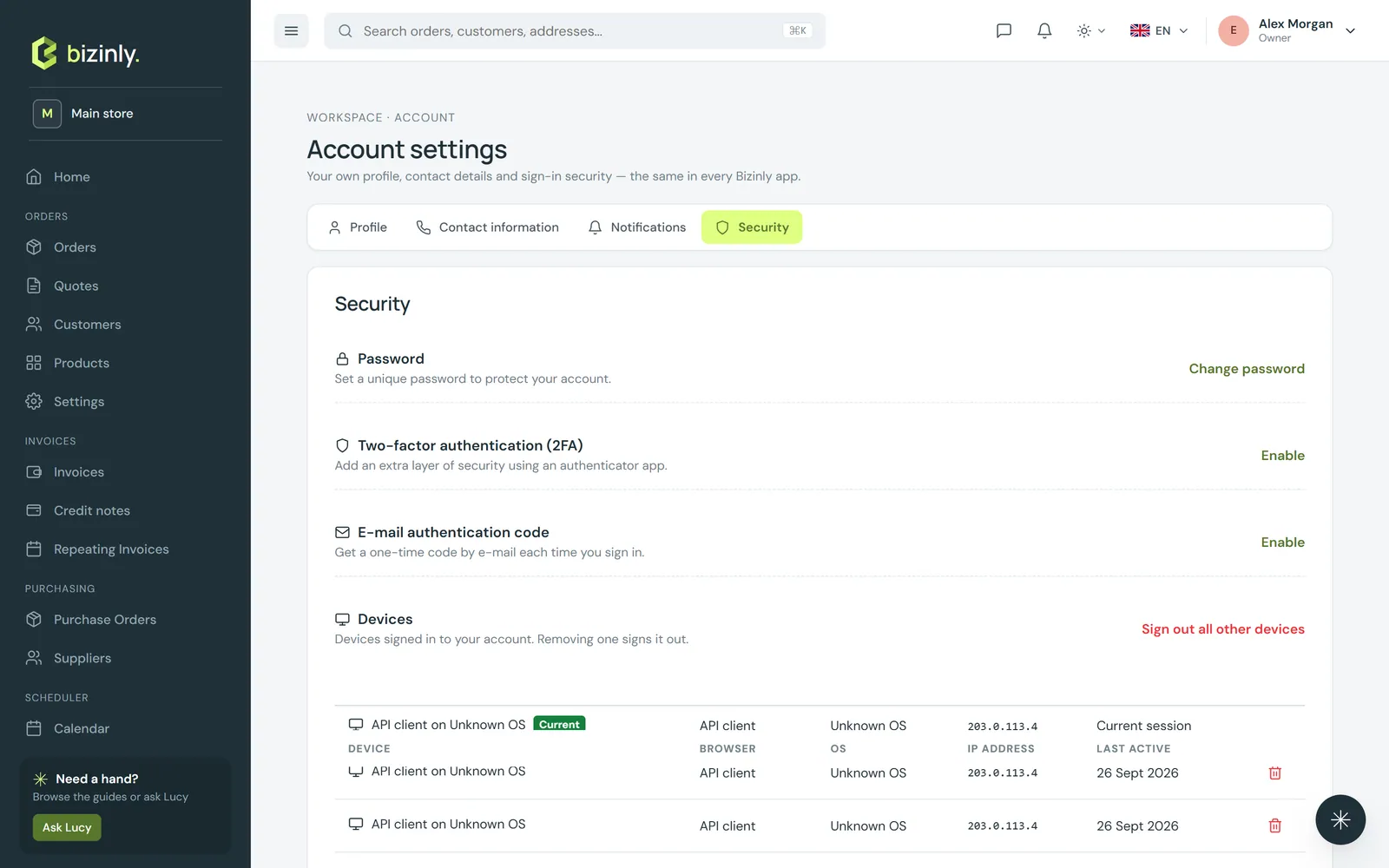
Change your password
You will be asked for your current password first, then your new one — at least 8 characters, with a letter and a digit, different from the one you had.
Two-factor authentication (authenticator app)
Adds a second step to signing in, using an authenticator app on your phone.
- Press Enable. A QR code (and a manual key, if you would rather type it in) appears — scan it with your authenticator app.
- Enter the 6-digit code it shows you, and press Verify & enable.
- From then on, signing in asks for a fresh code from your app as well as your password.
Disable removes it, after confirming — you will be asked to type a confirmation before it turns off.
E-mail authentication code
An alternative second step: a one-time code e-mailed to you after your password, instead of an authenticator app. Your business can also require this for everyone, from its own installation settings.
Devices
A list of your real, active sign-ins — the browser and device, the last time each was active, and which one is the one you are using right now.
- Remove signs a single device out; it takes effect the next time that device tries to do anything (usually within the hour).
- Sign out all other devices keeps the one you are using now and ends every other session at once — useful the moment you suspect a device was left signed in somewhere it shouldn't have been.
Related: Your account, Team members and roles.