
USER GUIDE
Add a product or service
Build your catalogue, or just type free-text lines and let Bizinly catch up.
Products are the catalogue you pick from on document lines; each one carries a name, SKU/code, unit, tax type and prices. You do not have to build a catalogue first — you can type a free-text line on any document, and confirming a sales order turns such lines into products automatically.
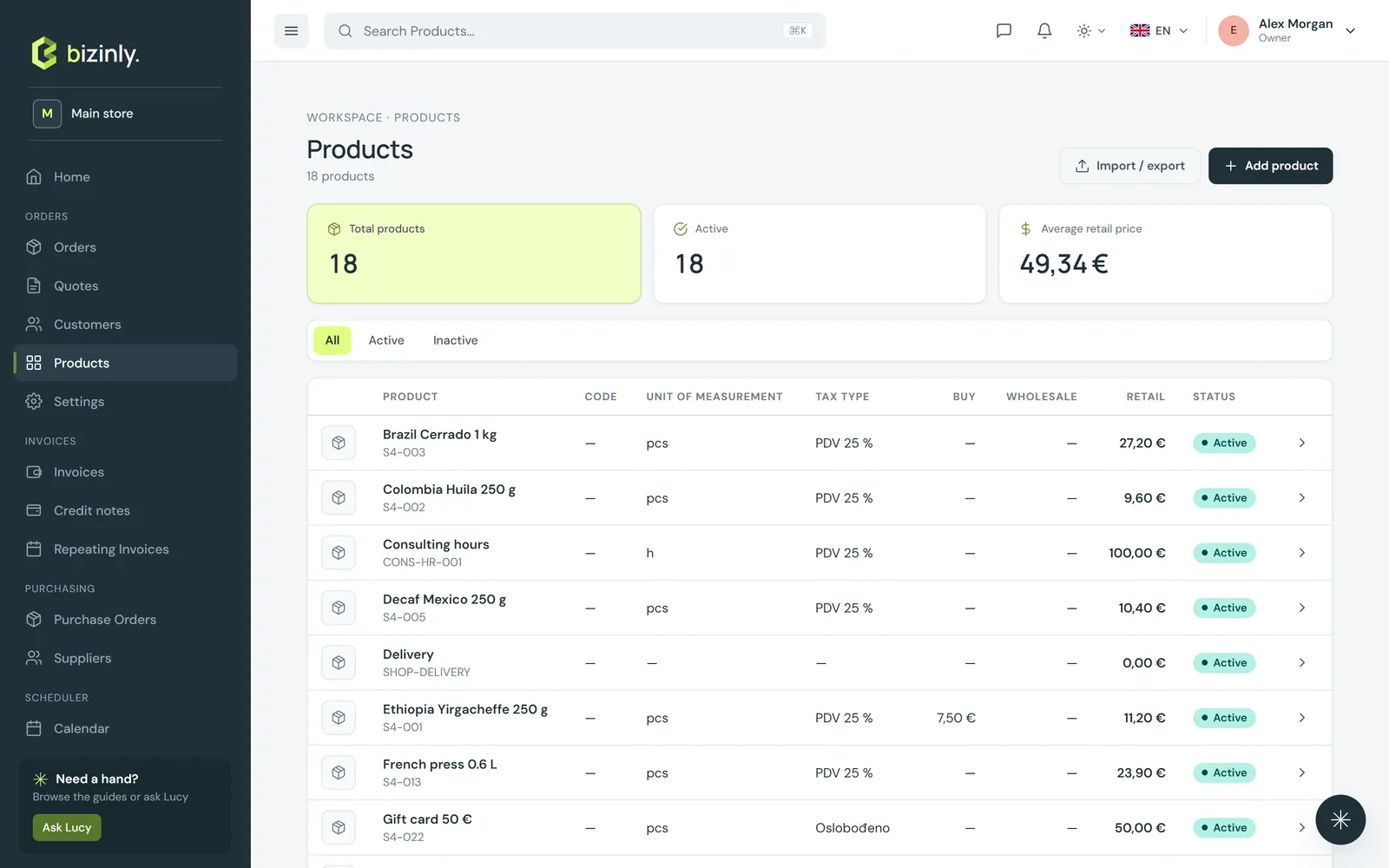
- Open Products and press New product.
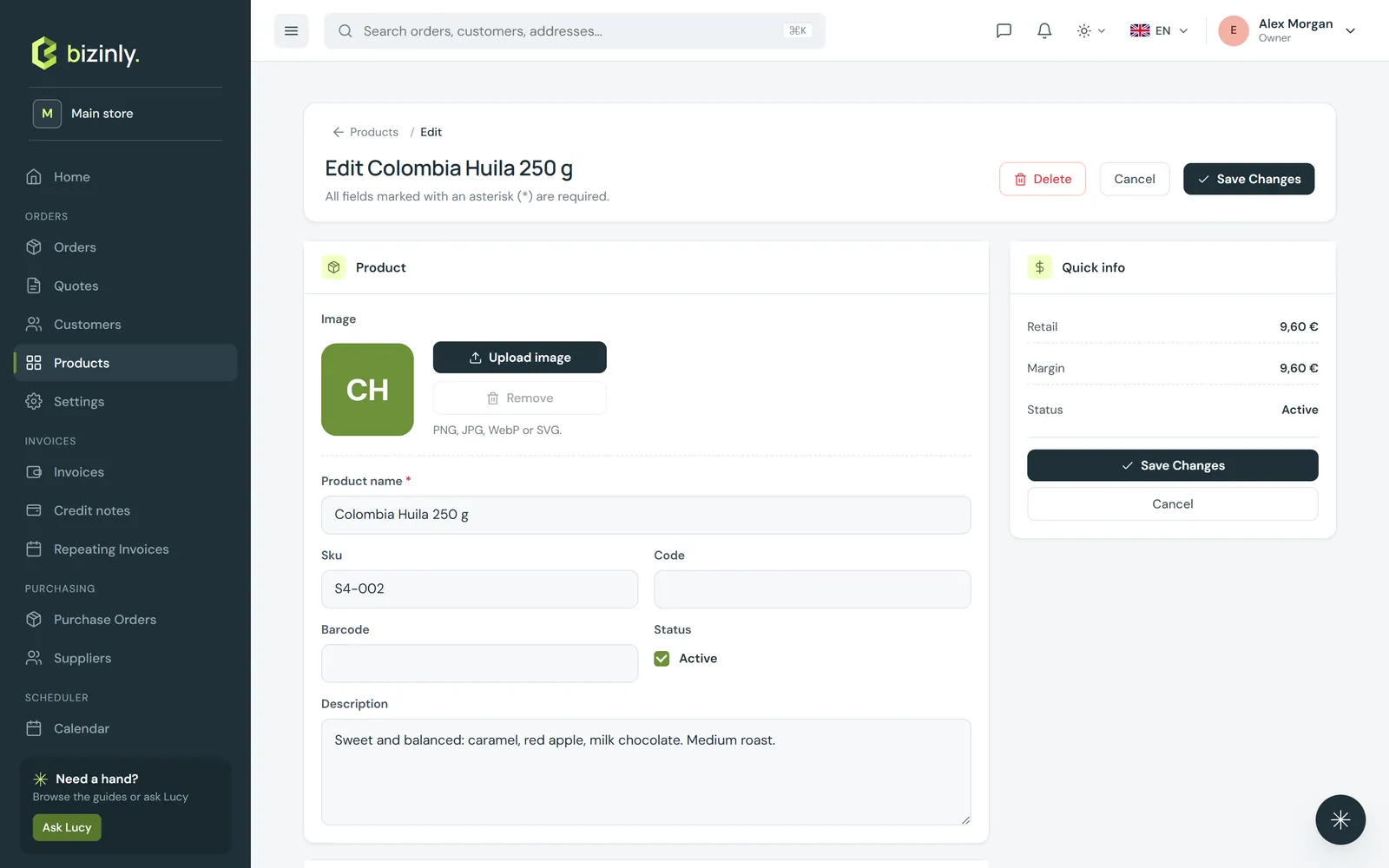
- Fill in Product (name, description, SKU, code, barcode, active), Pricing (buy price, wholesale price, retail price — the margin is shown live), Classification (unit of measure, tax type) and Dimensions (weight and similar).
- Press Save. Upload a product image from the edit form — it shows as a thumbnail in the list and on document heads.
 4. On a document line, start typing in the item field: matching products appear by name, SKU or code; picking one fills in the name, unit, price and tax rate. Type anything else to keep a free-text line.
5. When a sales order is confirmed, every free-text line becomes a product automatically (name, description, unit, tax type, and the retail price set to the line's own unit price); a line whose name matches an existing product links to it instead.
6. Deleting a product deactivates it rather than removing it — documents that already used it keep their lines exactly as they were.
4. On a document line, start typing in the item field: matching products appear by name, SKU or code; picking one fills in the name, unit, price and tax rate. Type anything else to keep a free-text line.
5. When a sales order is confirmed, every free-text line becomes a product automatically (name, description, unit, tax type, and the retail price set to the line's own unit price); a line whose name matches an existing product links to it instead.
6. Deleting a product deactivates it rather than removing it — documents that already used it keep their lines exactly as they were.
Related: Create a quote, Pricing, discounts and VAT, Reference data settings.