
USER GUIDE
Purchase orders and suppliers
The buying side of Bizinly — order from your suppliers, the same way you sell.
Purchasing mirrors the selling side of Bizinly, so the screens you already know for orders and invoices work the same way for what you buy.
Suppliers
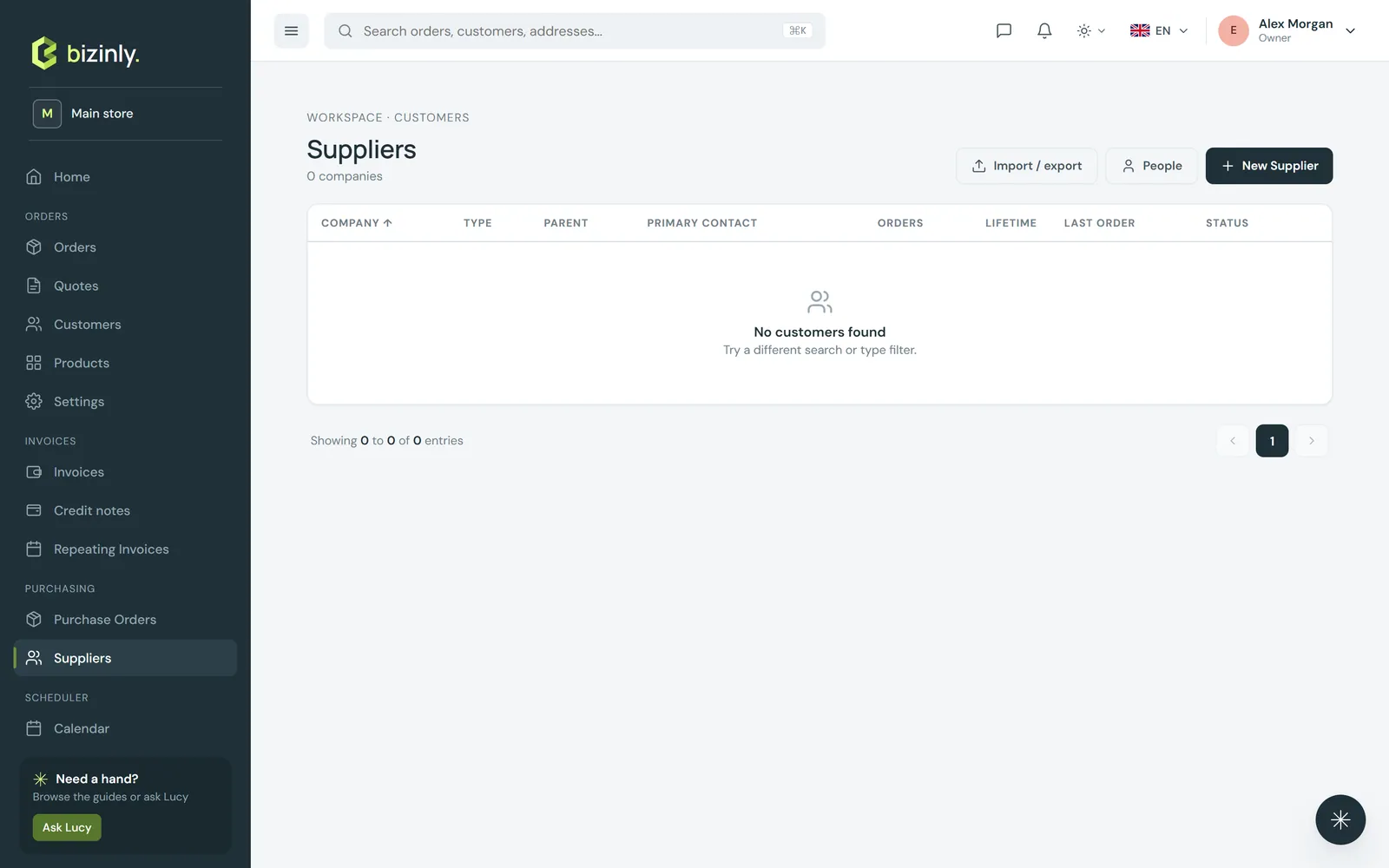
Suppliers are companies, just like customers — with the same addresses, contacts and picker you already use elsewhere. Open Suppliers → New supplier to add one, or quick-create one straight from a purchase order form.
Purchase orders
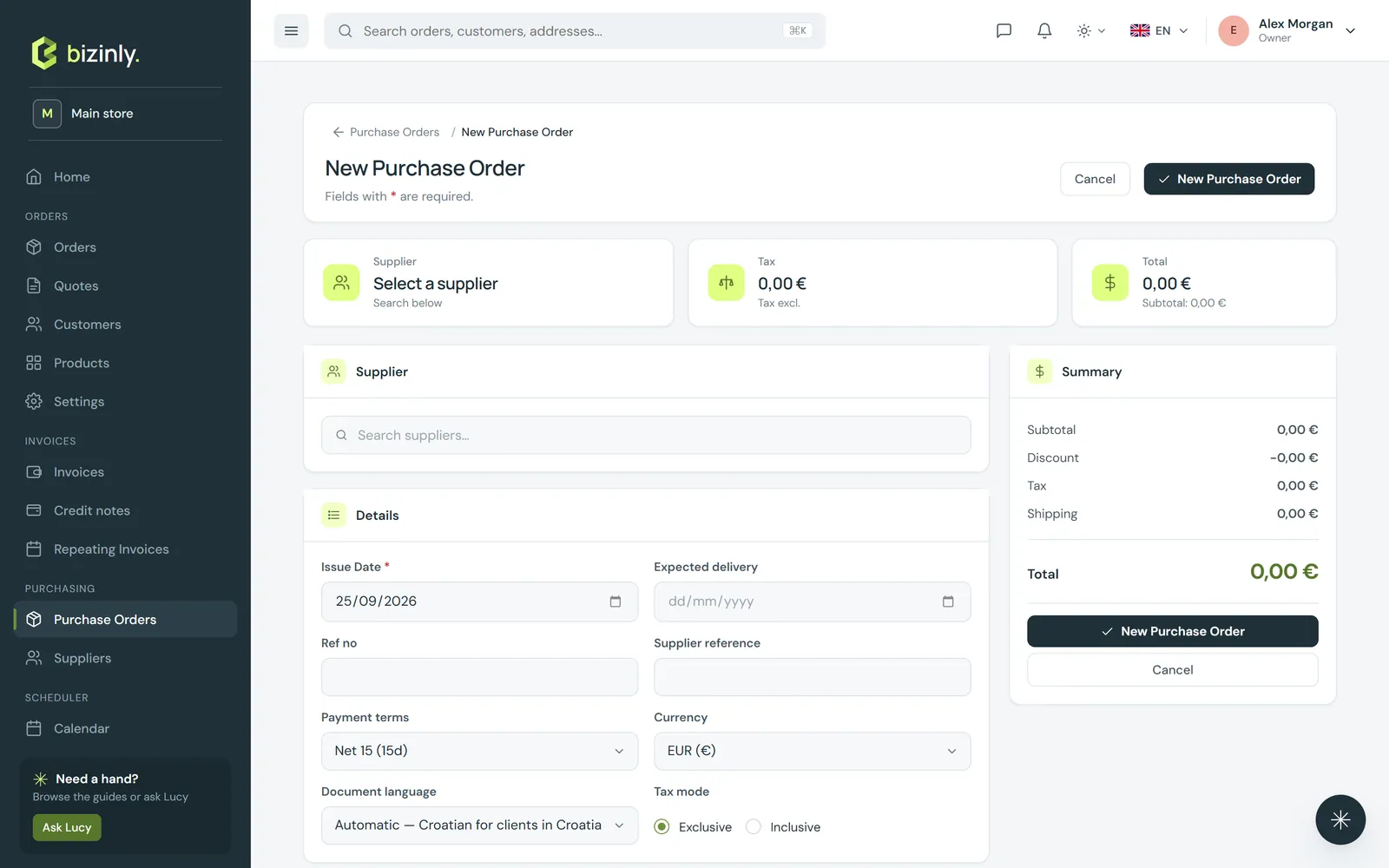
- Open Purchase orders → New. The form is the familiar document form: pick a supplier, add lines (picking a product fills in its buy price, not its retail price), and save.
- A purchase order moves through Draft → Sent → Confirmed → Received (closed), with Cancel available at every open stage, and Reopen from Cancelled. A received or cancelled purchase order cannot be edited.
- Print, download as a PDF, share a link or e-mail a purchase order the same way as any other document — the supplier's details take the place of the customer's, and there is no delivery address on the printed page.
Related: Add a customer (the same patterns apply to suppliers), Inventory and warehouses (coming soon) for what's still ahead, and What's coming next.