
USER GUIDE
Share and e-mail a document
Send the PDF by e-mail, or hand over a link that needs no login.
E-mail a document
Press the E-mail action on a quote, order or invoice: a dialog opens with the recipient, subject and body already filled in, and Bizinly sends the message with the PDF attached. An issued invoice is marked Sent automatically.
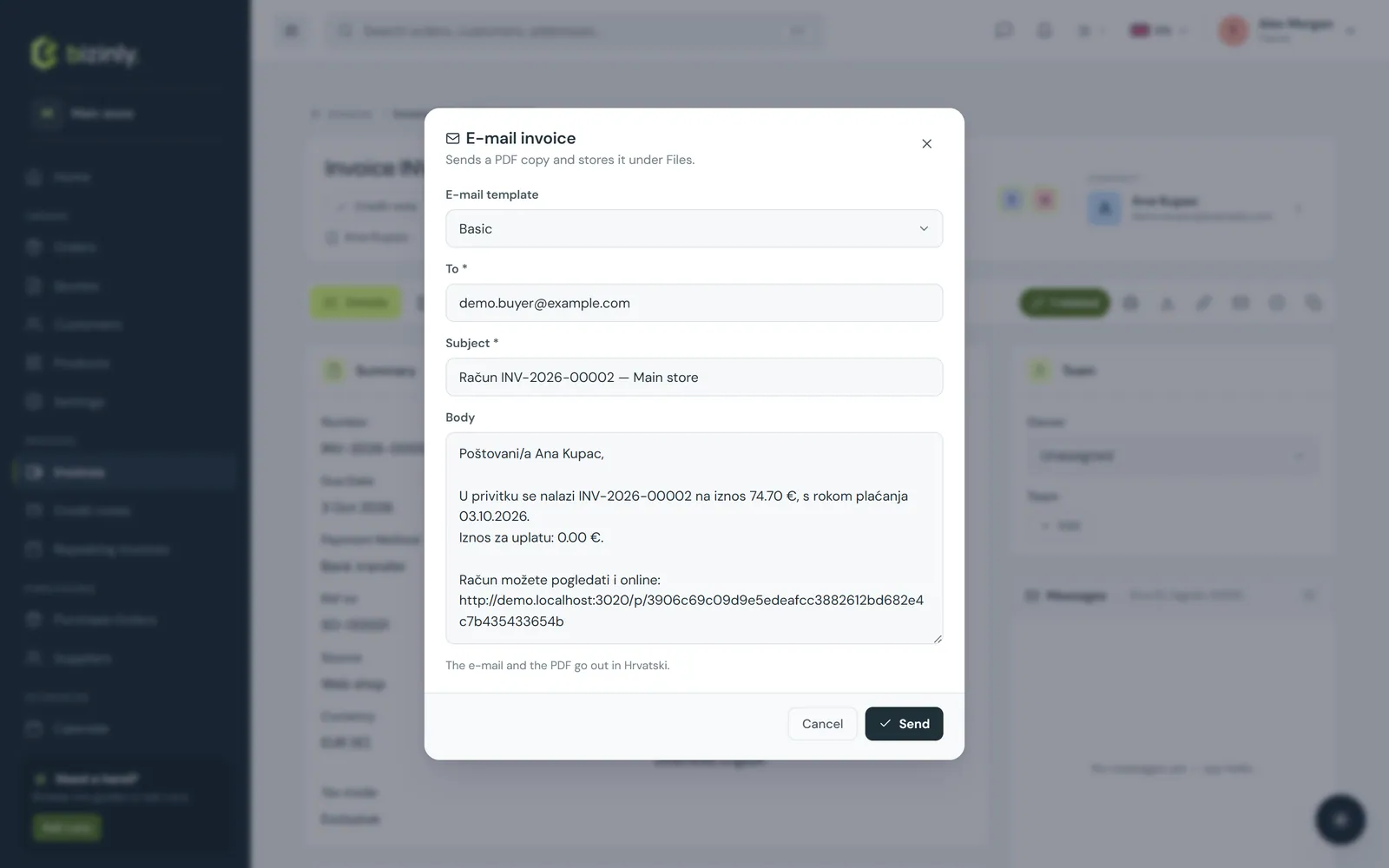
- Open the document and press E-mail.
- The recipient defaults to the customer's e-mail — change it to a specific contact's address if needed. The subject and body come from a template, with placeholders already replaced (invoice number, total, due date, an online payment link, and more).
- Press Send. The PDF is rendered, attached and sent; a copy is stored on the document's Files tab, and the send is recorded in its activity log.
- Sending needs an e-mail provider set up by your administrator (see Installation settings) — without one, the message is not delivered and you'll see an error.
Share a public link
Share link copies a public URL that shows the document, with a PDF download, to anyone who has it — no login needed. The link is created the first time you share it, and stays the same afterwards.
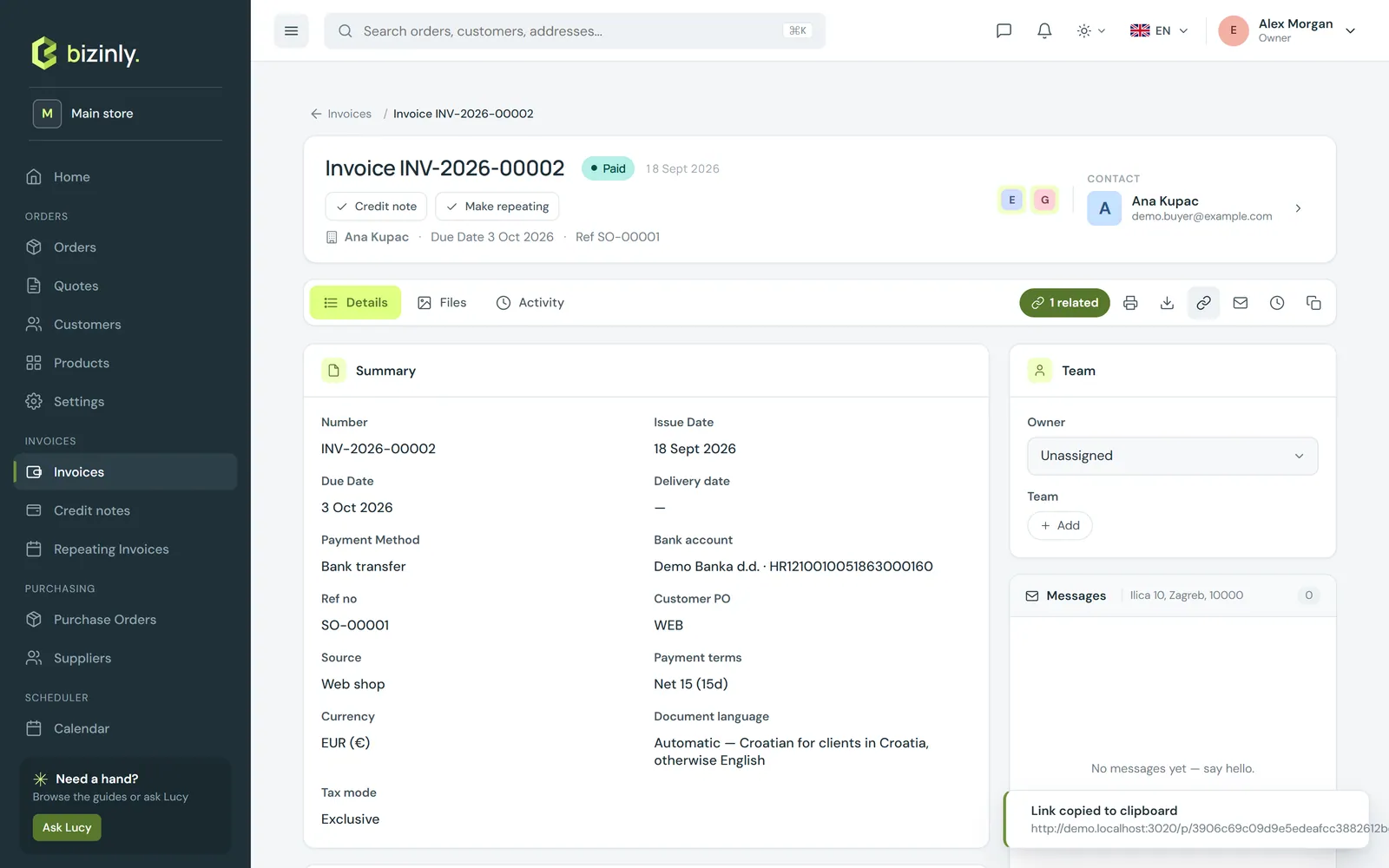
- Press Share link. The URL is copied to your clipboard.
- Paste it into a message, or use the e-mail dialog, which includes it automatically as a placeholder in the body.
- The public page matches the PDF layout; on an unpaid invoice it also offers online payment.
- The link never expires and cannot be revoked individually. To disable every shared link at once, turn off Public links in Settings → Documents.
Related: Print preview and PDF download, Online payments, Customer records.