
USER GUIDE
Create a quote
Send an offer, then accept it into a sales order.
A quote is created on Quotes → New quote, gets its number immediately, and starts as a Draft. Send it, then accept it to turn it into a sales order.
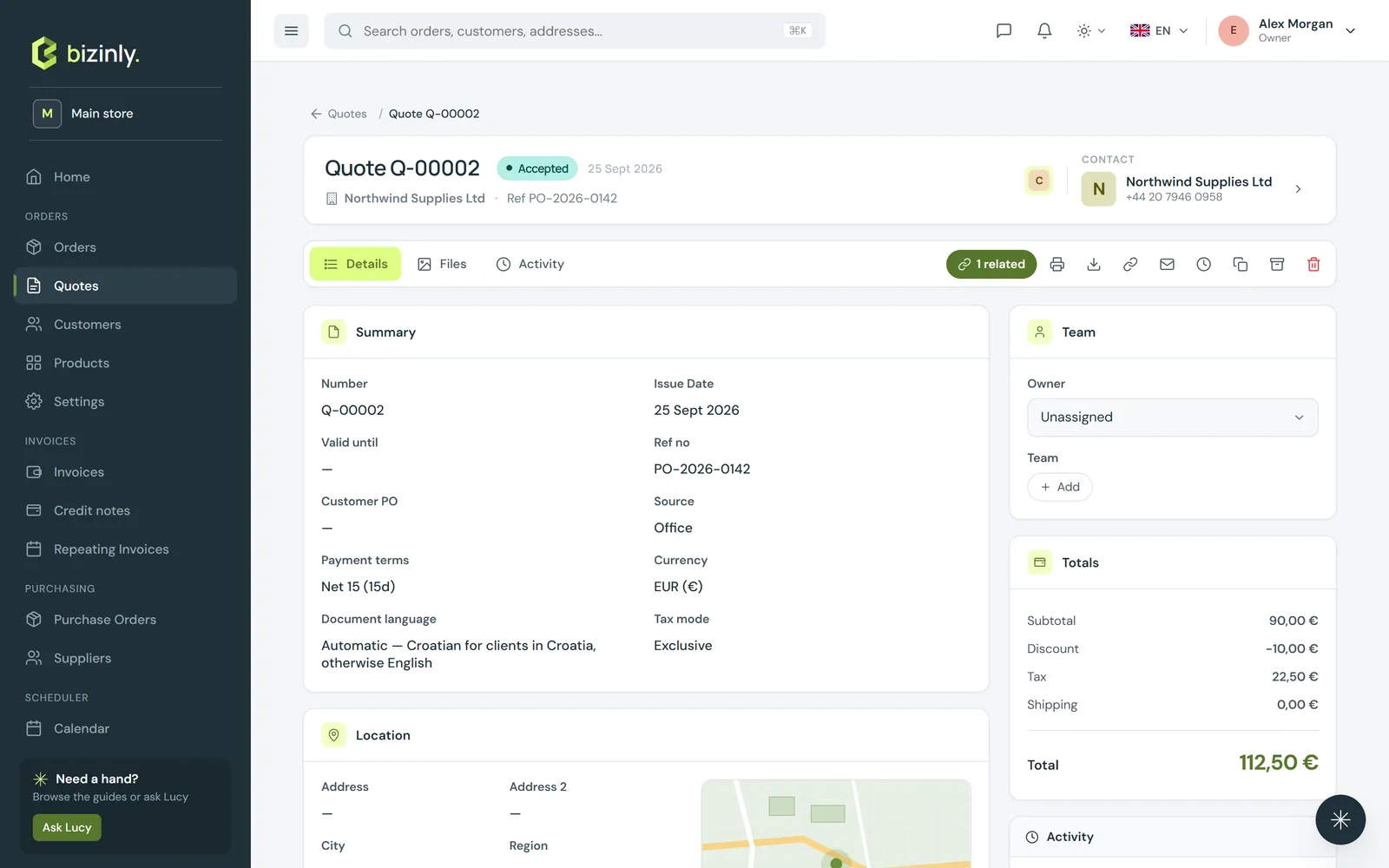
- Open Quotes and press New quote.
- Pick the customer (type to search, or quick-add a new one). The customer's default currency, tax type and payment terms are applied automatically. Choose the bill-to/ship-to addresses and a contact if the customer has several.
- Fill in the details: issue date, valid-until date, reference number, customer PO, payment terms, currency, and the price mode — Exclusive (net prices, VAT added) or Inclusive (gross prices, VAT included).
- Add lines: pick a product or leave free text; set quantity, unit, unit price, discount % and tax %. The line total and the summary update live.
- Optionally add a shipping cost and a document discount %, plus notes (these print on the PDF instead of your default quote footer).
- Press Save. The quote opens in Draft. Press Mark sent when you send it to the customer; e-mail it or download the PDF from the same page.
- Draft, sent, declined and expired quotes can still be edited; an Accepted quote is closed and cannot be changed.
Related: Turn a quote into an order, Pricing, discounts and VAT, Working with documents.