
USER GUIDE
Online payments
Let a customer pay a shared invoice by card, PayPal, Direct Debit or bank transfer, right from its link.
A customer can pay an invoice directly from its shared link — by card, PayPal and other regional methods, Direct Debit, or bank transfer — with no account or login needed on their side. Quotes, orders and drafts are never payable; only an issued, unpaid (or partly paid) invoice is.
The pay page
Opening a shared invoice shows a summary — the amount due, due date, reference and a foldable view of the lines — next to a payment card offering whichever ways to pay your business has switched on:
- Card payments — an embedded checkout for cards, plus wallet options such as Apple Pay and Google Pay where the customer's device and browser support them.
- PayPal — PayPal's own pay buttons, shown alongside card payment under an "or", or on their own when card payment isn't set up.
- More ways to pay — additional regional payment methods and Direct Debit, when your business has them switched on.
- Bank transfer — your account holder, IBAN, BIC and reference, always shown when your business has a bank account on file, with a scannable QR code that pre-fills the transfer in most European banking apps. The QR code only appears for invoices in euros; the transfer details themselves work for any currency.
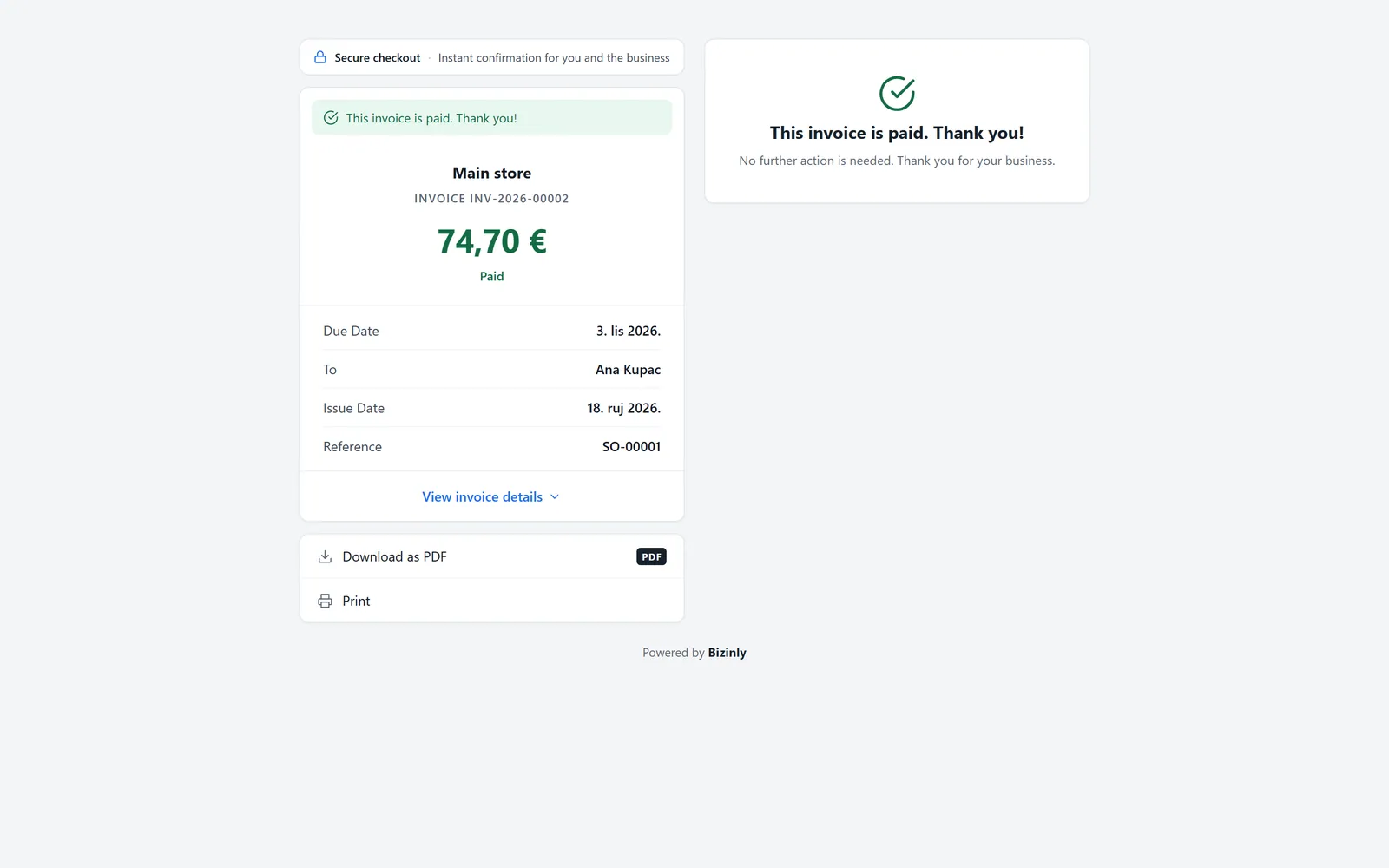
An invoice that's already fully paid shows a confirmation instead of the payment card. A Direct Debit payment that has been submitted but not yet collected shows a "being collected" state instead of the payment options, so the customer isn't offered to pay twice.
What happens after payment
A successful online payment is recorded automatically, exactly as if someone on your team had entered it by hand:
- The invoice's paid amount and status update straight away — to Partial or Paid — with no one needing to check and record it manually.
- The payment is added to the invoice's payment history with its method (card, PayPal, and so on) and the provider's own reference for it, so it's clear at a glance that it came in online and not, say, as a bank transfer someone typed in.
- Your team is notified, the same way as for a payment recorded by hand.
- Every attempt at paying — successful, failed, cancelled or abandoned partway through checkout — is kept on the invoice next to the payments actually received, so a customer's checkout never looks like it simply never happened.
Some payment methods don't confirm instantly. A Direct Debit payment is submitted immediately but the money follows a few days later once the bank collects it; an card payment can occasionally come back pending while the provider finishes processing it. In both cases Bizinly keeps checking automatically until the payment completes or fails — the invoice stays unpaid in the meantime, and no one needs to chase it by hand.
Amount, partial payments and overpayment
The pay page always charges the invoice's open balance — the total minus whatever has already been paid, whether that was paid online or recorded by hand. There's no field for the customer to choose a different amount, so an online payment can't overpay an invoice or leave it worse off than it already is. If an invoice has been partly paid another way, the pay page simply asks for what's left.
Turning it on
Open Settings → Payments. Ways to pay are grouped into three cards:
- Card payments — pick one provider (Stripe or Authorize.Net).
- Bank payments — pick one provider (GoCardless for Direct Debit, or Wise).
- Payment buttons — switch on as many as you like (PayPal, Revolut Pay).
Picking a provider for Card payments or Bank payments automatically switches off any other provider in that same card — only one of each can be live at a time.
Enter the provider's own keys, from your own account with that provider — the money always goes straight to you; Bizinly never touches it or takes a cut. Choose test or live mode, and save. See the setup guide for the provider you're using:
Bank transfer needs no keys or setup beyond a bank account on file — see its own guide for the details it needs to show a working QR code.
Related: Record and manage payments, Share and e-mail a document, Installation settings.