
USER GUIDE
Lucy, your in-app assistant
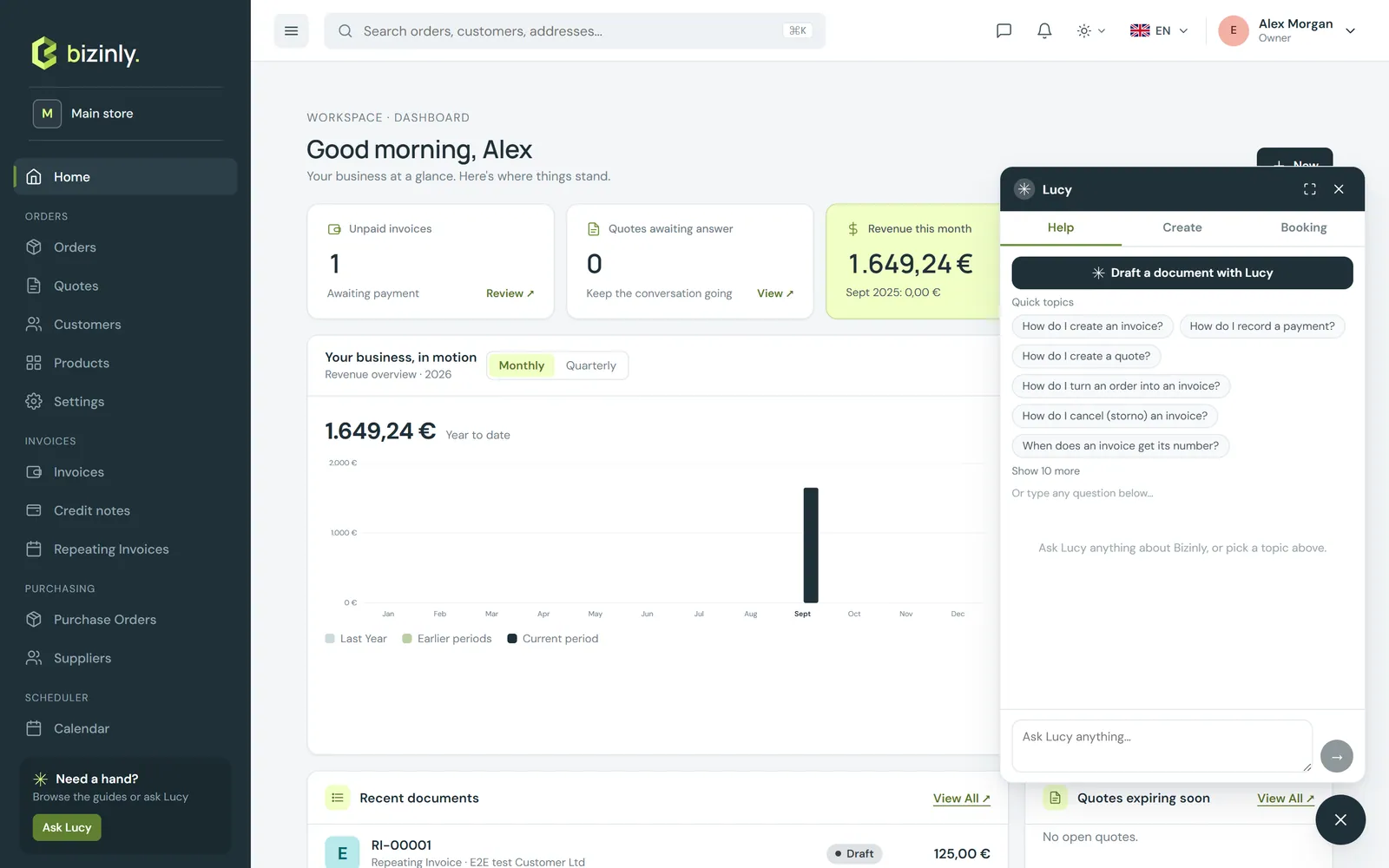
Ask Lucy how to do something, search by asking, let her draft a document, or book an appointment.
Lucy is built into every screen of Bizinly. Ask her, in plain English, how to do something and she answers with the exact buttons and screens to use; she can also draft a document for you from one sentence — you always review it before anything is created. See Meet Lucy for how this compares to connecting your own Lucy account.
Ask a question
- Open Lucy from the help button and either pick a quick-topic chip or type a question.
- Lucy answers with a short explanation, numbered steps, and links to related topics; ask a follow-up to go deeper.
- Lucy knows quotes, orders, customers, contacts, products, invoices, proformas, credit notes, payments, PDFs, e-mail, public links, settings, filters and search — and is honest when something is not built yet.
Example prompts, by area:
| Area | Try asking |
|---|---|
| Quotes | "How do I create a quote?" · "How do I convert a quote to an order?" |
| Orders | "How do I turn an order into an invoice?" · "find order 1123" |
| Invoices | "How do I record a partial payment?" · "When does an invoice get its number?" · "How do I e-mail a PDF to the customer?" |
| Customers | "How do I add a customer?" · "open Northline" · "who is the contact at Kvarner Tehnika" |
| Payments | "How do I record a partial payment or refund?" · "who owes me money" |
Open Lucy while looking at a document or a customer, and she knows which one you mean — a follow-up like "is this one overdue?" carries that context.
Draft with Lucy
On the Quotes, Orders, Proformas or Invoices list, click Draft with Lucy (or open Lucy and choose Create). Four short steps:
- Document — pick the type: Quote, Order, Proforma or Invoice.
- Customer — search for an existing customer, or quick-add a new one on the spot.
- Describe it — one sentence about the work, for example "3 consulting hours at 120 and one onboarding package". Lucy drafts the lines, matching your own product catalogue by name where it can.
- Review — the drafted lines, quantities and prices, the customer's discount, your default tax rate, and the total. Press Create and the document opens with today's date and everything already filled in — change anything on the document itself, then issue, e-mail or print it as usual.
Nothing is written to Bizinly until you press Create on that last step.
The Booking tab
When the Sales pipeline or the Scheduler module is turned on for your workspace, Lucy's panel has a third tab, Booking, for scheduling a visit or a call without leaving the panel:
- Search for the deal, order or quote you're booking against and pick it.
- Choose the date and time, who on your team is going, and where.
- Add a note if useful, then press Book it.
The booking is saved the same way as booking one from the document itself — the assignee is added to the document's team and notified, and it shows up on the document and on the calendar.
Search by asking
Ask things like "find order 1123", "open Northline", "who is the contact at Kvarner Tehnika", or "who owes me money" — Lucy looks across your documents, customers, contacts and products and answers with links you can click straight through to. Nothing matched → Lucy says so, rather than inventing an answer.
What Lucy does not do here
From this in-app assistant, Lucy does not edit, issue, send or delete documents on her own, and does not give tax or legal advice. (Connecting your own Lucy account to Bizinly is a separate, optional step that lets Lucy act on your data directly — see Connect Bizinly to your own Lucy.)
Related: Meet Lucy, What Lucy can do in your workspace, Connect Bizinly to your own Lucy, Getting started.