
USER GUIDE
Print preview and PDF download
The same layout on screen, in the PDF, and on the public link.
Quotes, orders and invoices have Print preview and Download PDF actions; the same layout is used on screen, in the downloaded PDF and on the public link. A draft prints with a clear DRAFT watermark, so it is never mistaken for the real thing.
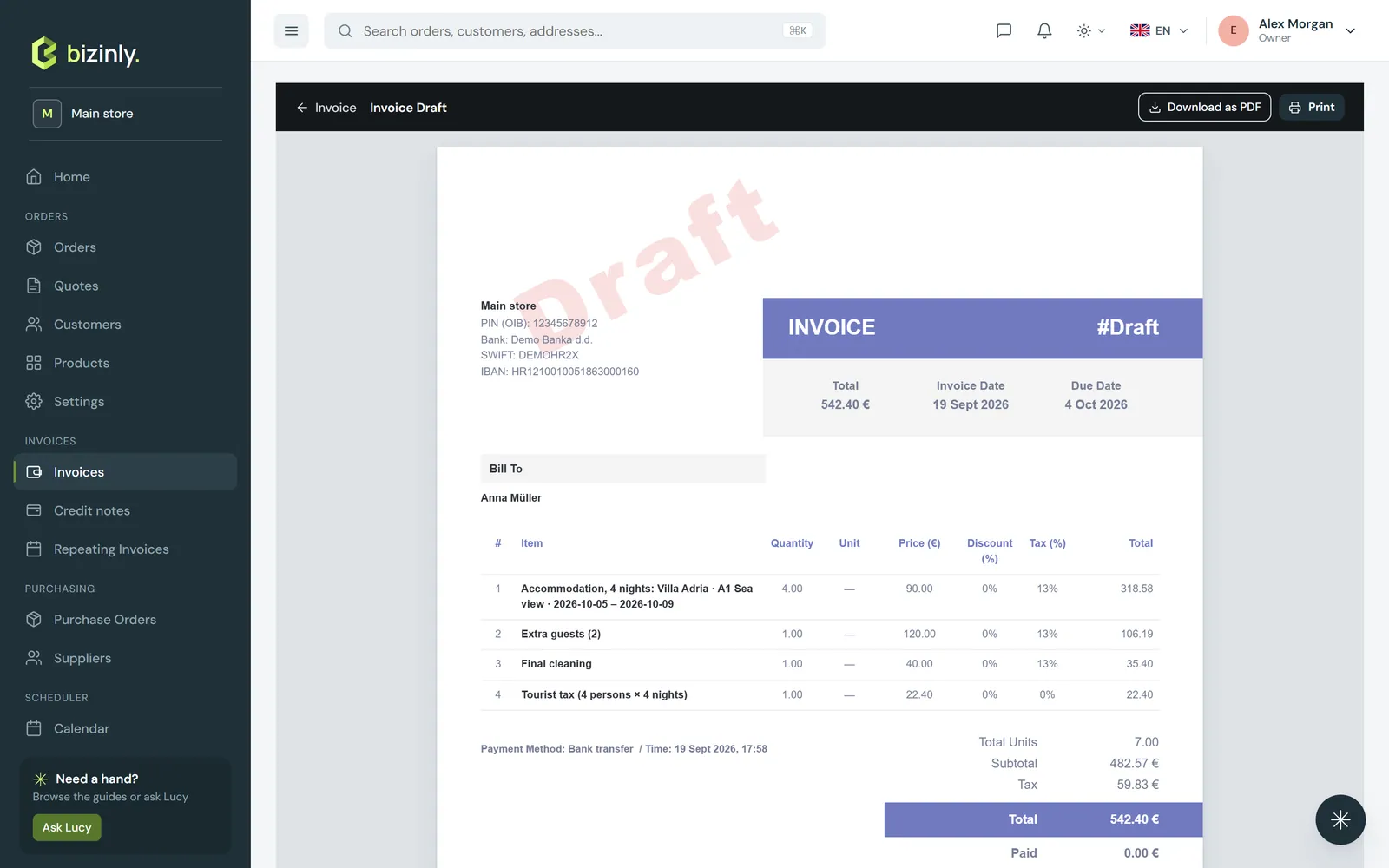
- Open the document and press Print preview — a page with your company details, the customer's billing and shipping address, the line table, totals, a VAT recap where relevant, your footer texts and, when a bank account is set, your payment details. Use the browser's print function or Download PDF from there.
- Or press Download PDF directly; the file is named after your store and the document's number.
- What prints comes straight from your settings — logo, legal name, tax details, address and contacts (Settings → Company), header and footer texts and the print toggles for description, unit, shipping costs and "issued by" (Settings → Documents).
- The customer block uses the document's own billing address, and a shipping address only when one is set. Lines show the current product name for catalogue items and the typed name for free-text lines; the document's own Notes field replaces the default footer text when it is filled in.
Related: Share and e-mail a document, Document branding and e-mail templates, Company and document settings.