
USER GUIDE
Notifications
What your team hears about, and how — in the app, by e-mail, or by SMS.
Bizinly notifies your team about the things that matter — a document created, a status changed, an invoice issued, a payment recorded, a contract signed, a new message — as a real per-person inbox, not a shared, ever-growing feed.
In the app
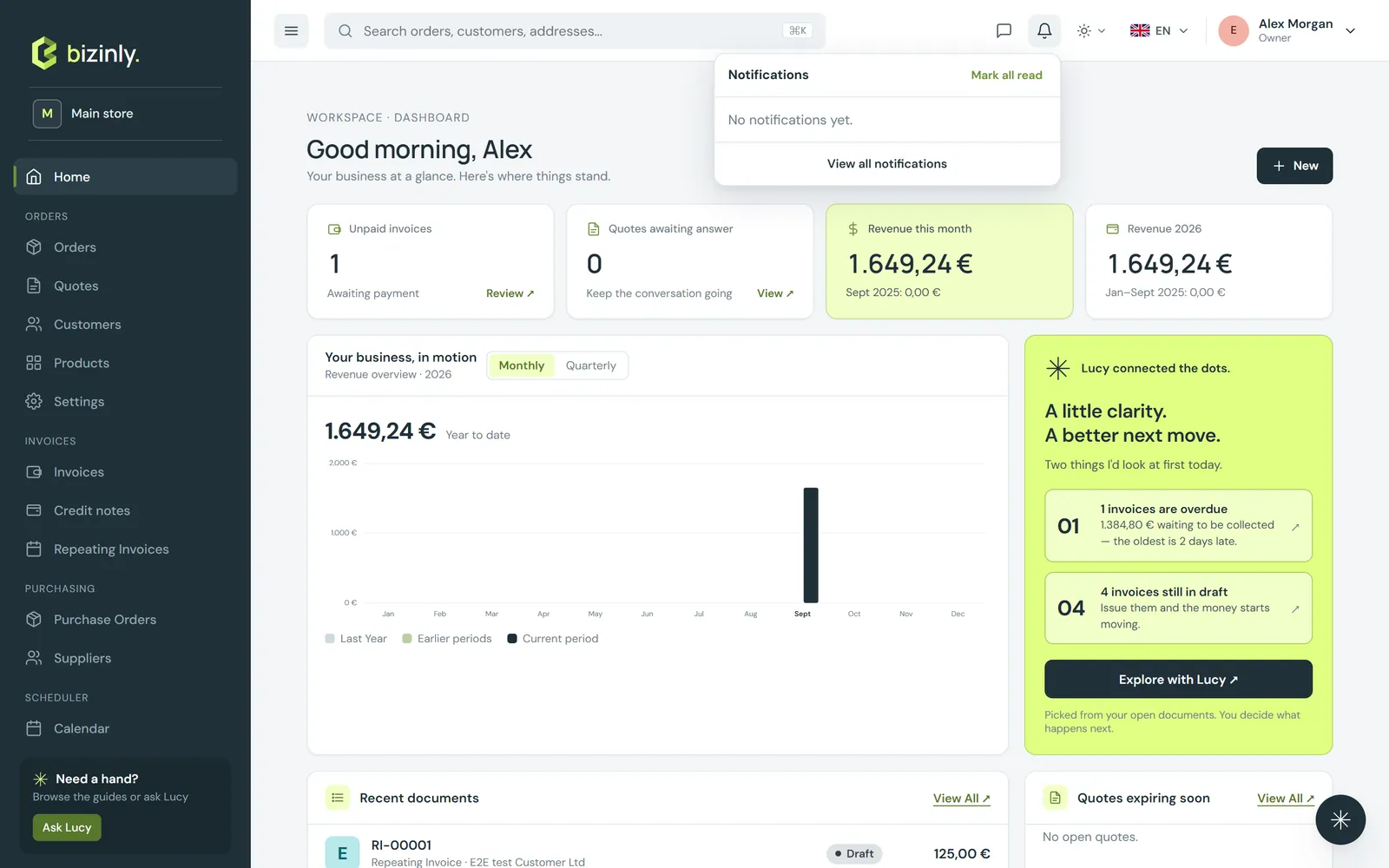
The bell in the top bar shows your unread notifications, newest first; click one to jump straight to what it is about, or Mark all read to clear the badge. The full Notifications page lists everything, with an Unread filter.
Two layers of settings
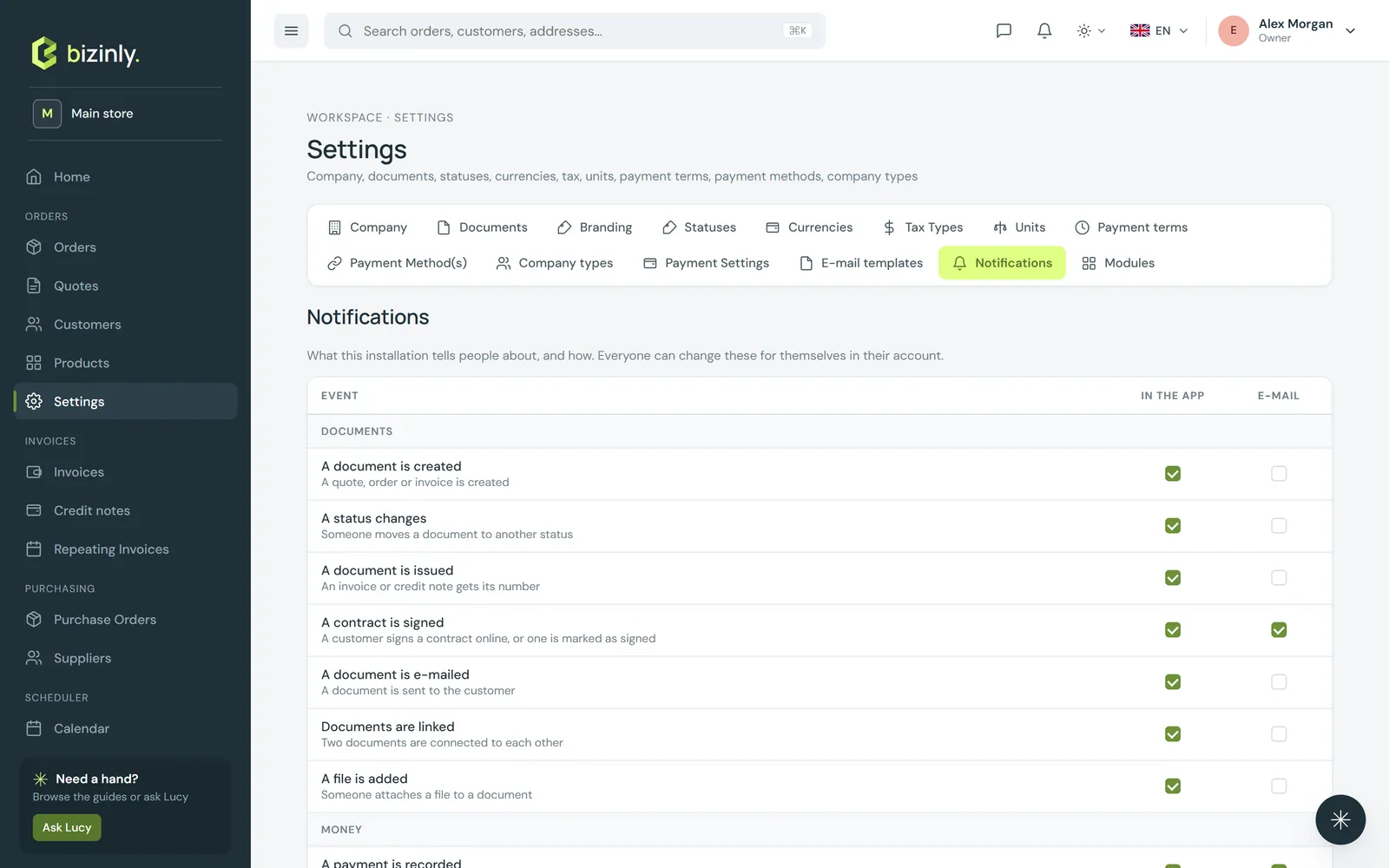
- Installation defaults (Settings → Notifications, needs the settings permission) — decide, event by event, whether it reaches the app, e-mail, SMS, or a combination, for everyone on the team by default. Money-related and work-assigned-to-you events default to e-mail as well as the app; everything else defaults to the app only.
 2. Your own switches (Account → Notifications) — turn any channel up or down for yourself, or pause notifications for an hour, a day or a week when you need quiet.
By e-mail and SMS
E-mail delivery batches your unread notifications from the last day into one message, so you are not flooded one e-mail at a time; SMS (where your installation has it switched on) sends the newest event with a count of anything else waiting. Both go out through your installation's own e-mail and SMS setup — see Installation settings.
Related: Team members and roles, Payment reminders, Account security.