
USER GUIDE
Add a customer
Create a customer with addresses and contacts, or quick-add one from a document.
A customer is a company (or a private person, marked as a consumer) with billing and shipping addresses and contacts. There are two ways to create one.
From the Customers list
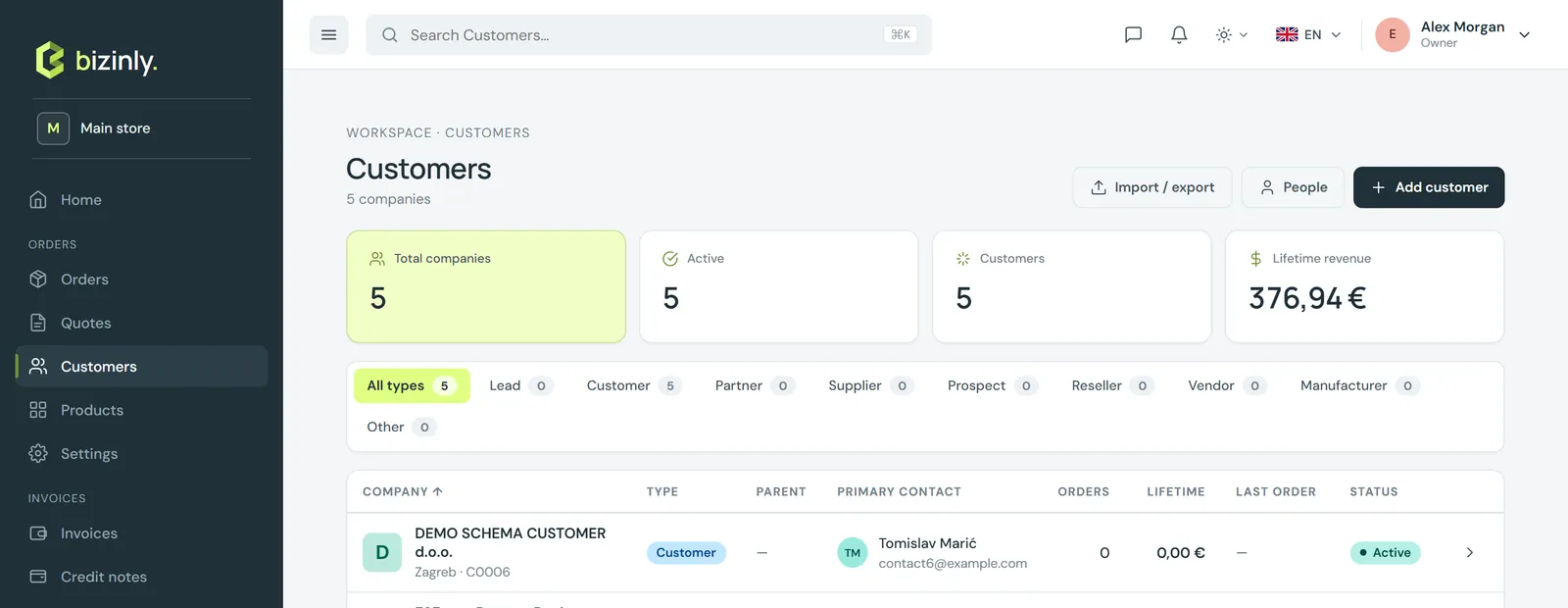
- Open Customers and press New customer.
- Fill in Company (name, type — customer, partner, supplier, prospect, reseller, vendor, manufacturer, other — status, industry), Contact details (e-mail, phone, website), Tax & billing (tax number, VAT ID, default currency, default tax type, default payment terms, default discount %) and Notes. Tick Consumer for a private person.
- Press Save. Bizinly opens the customer's edit page.
- Under Addresses, add a Billing address and, if different, a Shipping address. With address autocomplete configured, start typing and pick a suggestion — city, postcode and country fill in automatically.
- Under People, add contacts (name, e-mail, phone, role) and tick Primary for the main one — the primary contact is the one shown on documents.
- Upload a logo; it appears in lists, drawers and the customer's own page.
The defaults you set here — currency, tax type, payment terms, discount — pre-fill every new document you create for this customer.
Quick-add from a document form
You do not have to leave a quote, order or invoice form to create a customer.
- Click the Customer field and start typing. Existing customers appear as you type.
- No match? Click Create "…" as a new customer. A quick-add dialog opens with the name filled in.
- Fill in type, tax number, VAT ID, e-mail, phone and address, then Save. If a customer with the same name already exists, the dialog warns you and offers to use the existing one instead of creating a duplicate.
- The new customer (with its billing address) is selected on the form at once, and its defaults are applied to the document. Add more addresses, contacts or a logo later from Customers.
Related: Customer records, Add a product, Create a quote.