
USER GUIDE
Import and export customers and products
Bring your existing data in as CSV or JSON, and export it back out any time.
Customers and Products each have an Import / export action. It is a real, careful import — Bizinly checks the file first and reports every row it cannot use, rather than skipping bad rows silently.
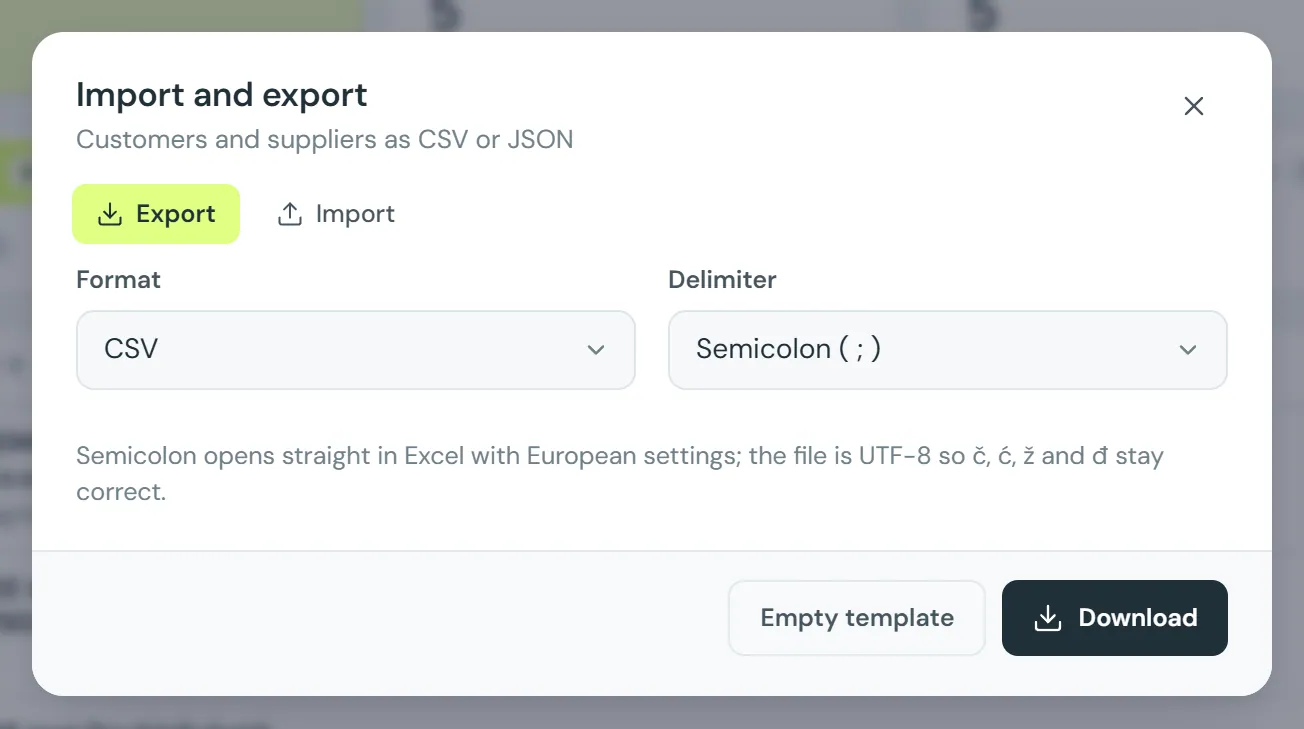
Exporting
- Open Customers or Products, then Import / export → Export.
- Choose CSV or JSON, and — for CSV — a delimiter. The file opens correctly in a spreadsheet app with the right encoding for accented characters.
- Export the current search/filter, or everything.
Importing
- Open Import / export → Import and choose your file. CSV files are auto-detected for their delimiter; column headers are matched by name or by common aliases, so your existing spreadsheet rarely needs reshaping.
- Press Check file first. Bizinly shows how many rows are new, how many will update an existing record, and lists every rejected row with the reason — nothing is saved yet.
- A row matches an existing customer or product by its ID, tax number, code, SKU or barcode; anything else creates a new record. A file with just a couple of columns (say, SKU and price) updates only those fields and leaves the rest of the record untouched.
- Press Import N rows to run it for real. Each row is written the same way as if you had typed it into the form — the same checks, the same permissions and the same activity log entry.
- Limits: up to 5,000 rows and 10 MB per file, so a very large import is refused up front rather than run halfway.
Through Lucy
If you have connected your own Lucy account (see Connect Bizinly to your own Lucy), you can ask Lucy to import or export the same way — for example "update the prices from this list". Lucy always shows you the plan and asks before actually writing anything.
Related: Add a customer, Add a product.