
USER GUIDE
Finding what you need: search, filters and exports
Global search, list filters and PDF/CSV exports.
Bizinly has one search box for everything and a filter panel on every document list, so you rarely need to scroll through pages of rows to find what you are after.
Global search
The search box in the top bar (shortcut Ctrl + K, ⌘K on a Mac) searches documents by number, reference and customer PO, customers by name, code or e-mail, contacts by name or e-mail, and products by name or SKU — with quick results as you type.
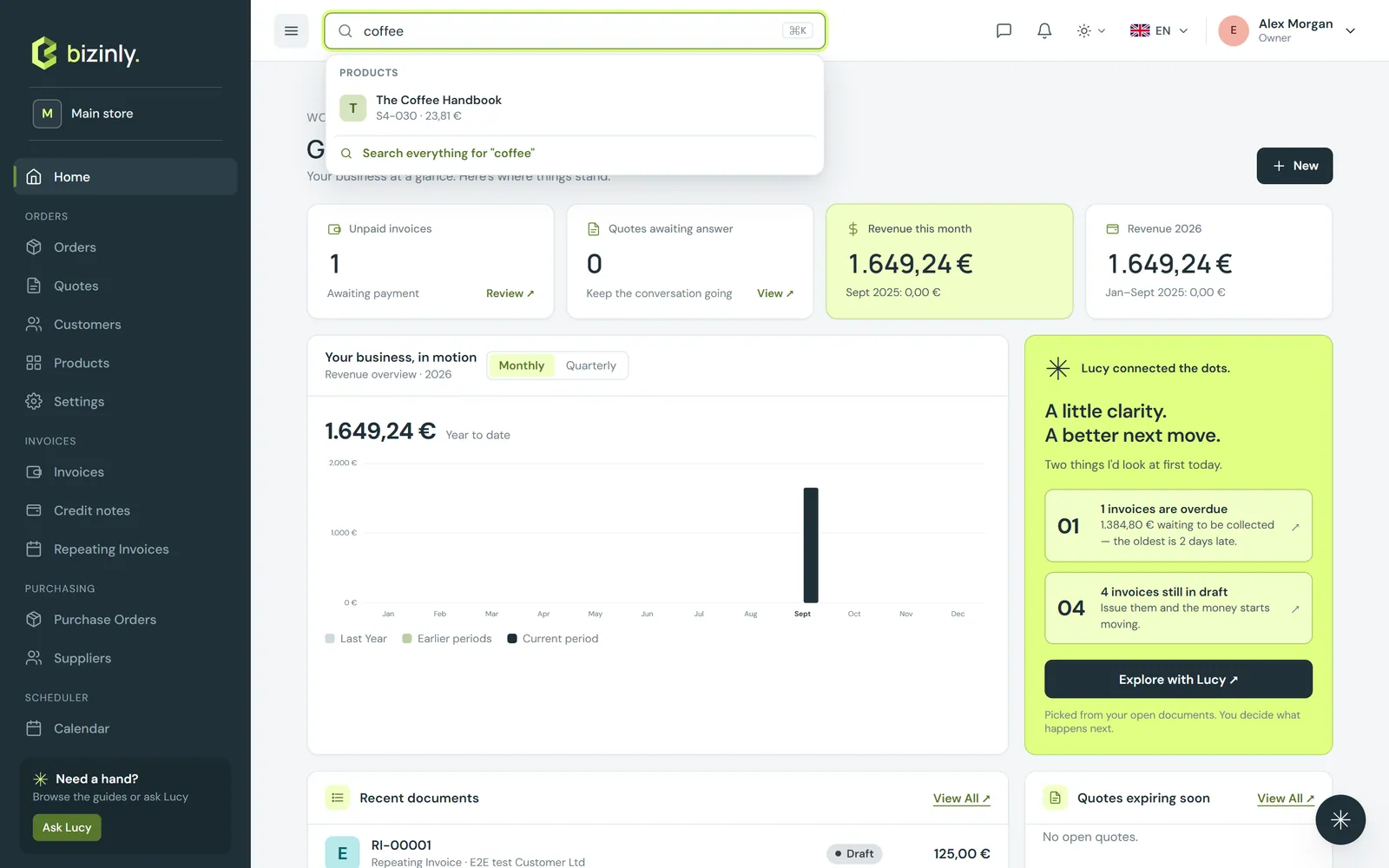
- Click the search box or press Ctrl + K. Type at least two characters.
- Results are grouped: Documents (with a status chip), Customers, Contacts, Products. Use the arrow keys and Enter, or click, to open one.
- Pressing Enter with nothing selected opens the full Search page with more results per group — or, if you are already on a list, filters that list by your term.
Filters on a list
Every document list (quotes, orders, invoices, proformas, credit notes) has status pills, a sort menu and a Filters panel with a customer filter and a date range on the issue date, due date or creation date.
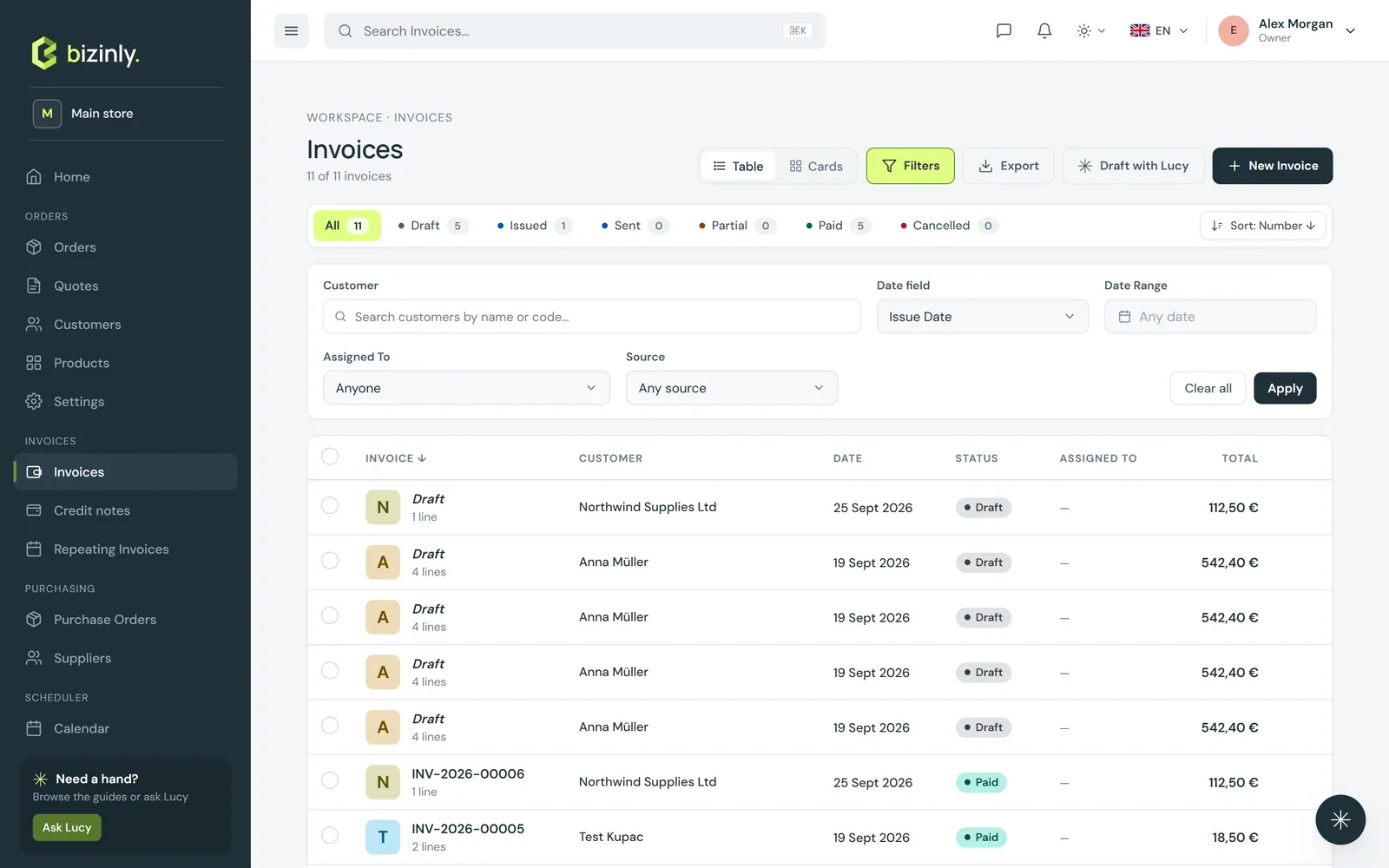
- Click a status pill (All, Draft, Sent, …) — each one shows its own count.
- Open Filters, pick a customer, a date field and a date range (a calendar with presets like This month or Last month), then Apply.
- Active filters show as chips you can clear individually, or all at once. Filters live in the page's URL, so a filtered list can be bookmarked or shared with a teammate.
Exporting a list
The Export menu on every list produces a PDF summary report (a dense list with totals per currency) or a CSV file of exactly what the filtered list shows — or only the rows you have selected.
- Filter the list the way you want it first — the export contains exactly what is on screen.
- Press Export → Export PDF or Export CSV.
- The CSV opens directly in a spreadsheet app with the right delimiter and encoding for your locale; send it to your accountant at month end.
Related: Getting started, Working with documents.