
USER GUIDE
Collaboration: messages and files
Chat with your team on a document, and attach the files that belong with it.
Team messages
Every sales order, invoice and deal has a Messages panel where your team can talk about that document in real time. It is entirely internal — customers never see it, and it is separate from any e-mail you send them.
- Open a document; the Messages panel is in its side rail. Type and press Enter to send (Shift + Enter for a new line); the paperclip attaches a file.
- Messages arrive live for everyone who has the document open, with a typing indicator and date dividers.
- A teammate who is not looking at the thread gets an e-mail with a preview and a link, so nothing gets missed; reading the thread clears the unread count.
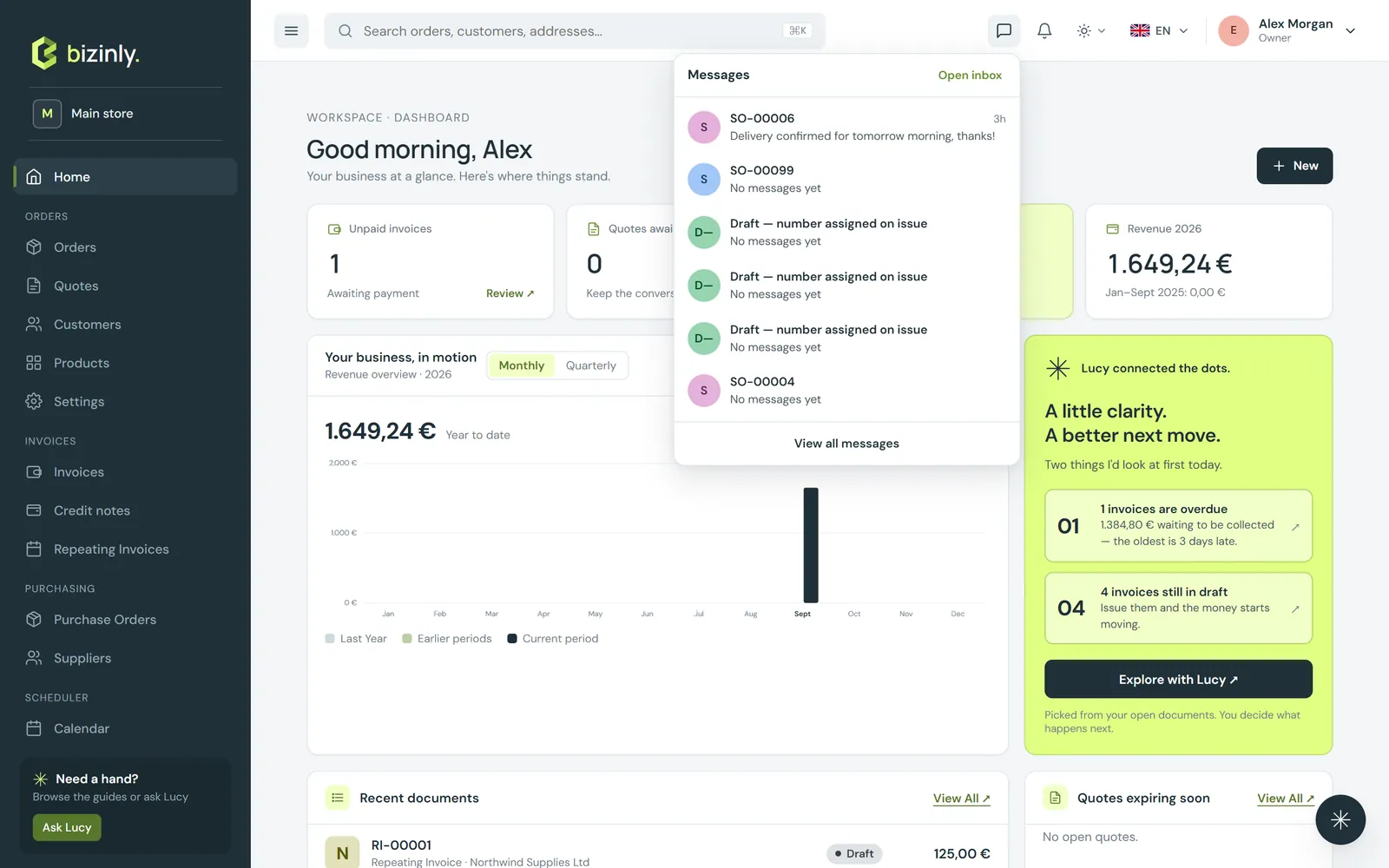
- The Messages page in the sidebar is the inbox for every conversation across the app, and the top-bar icon shows the most recent ones.
Files and photos
Documents, customers, contacts and products can all carry files and photos.
- On a document, open the Files tab, press Upload, and pick one or several files (drag-and-drop where supported). Images show in a grid, other files in a list.
- Click a file to download it, or the trash icon to remove it.
- Common types are supported — images, PDFs, spreadsheets and Word documents — up to a size limit your administrator can adjust.
- A company logo or a product photo is a single primary image: uploading a new one replaces it everywhere it is shown.
- A PDF you e-mail from a document is stored automatically under that document's Files tab, so the sent copy is always on record.
Related: Create a sales order, Share and e-mail a document.