
USER GUIDE
Team members and roles
Add people, decide what they can do, and shape the menu for everyone.
Admin (in the sidebar, under Global settings) is your installation's own administration — who is on the team, what each role can do, and how the app looks for everyone. See App settings overview for what else lives there.
Team members
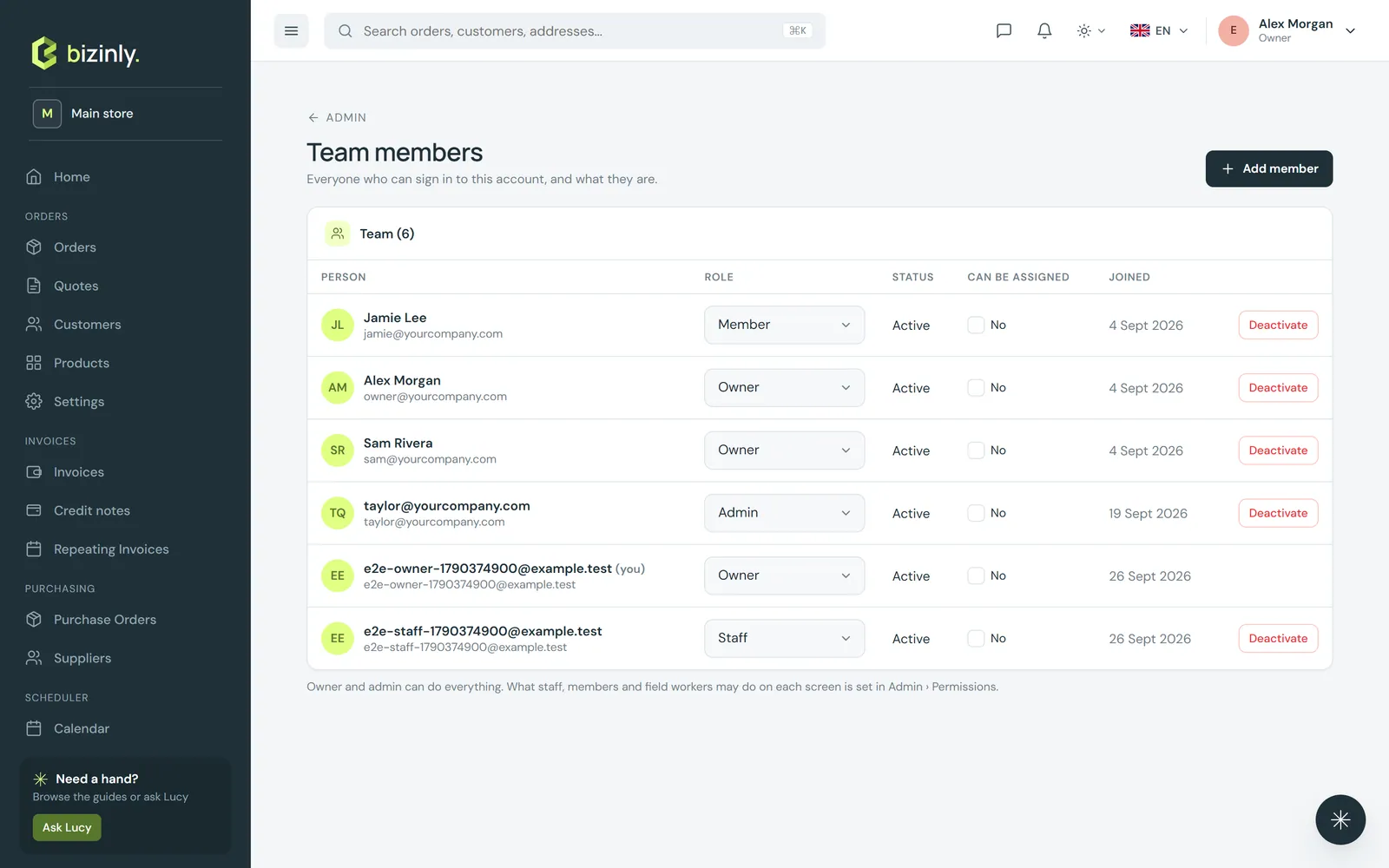
- Open Admin → Team members — only the account owner can add people or change roles. (An owner-run workspace is naturally both.)
- Press Add member: e-mail, first and last name, and a role (admin, staff, member, or field worker). If they do not have an account yet, one is created for them, and they are e-mailed how to sign in.
- Change a role inline, or Deactivate someone — this keeps their history and past assignments intact rather than erasing them. Your team always keeps at least one active owner.
Permissions
Admin → Permissions is a matrix: each role, against each screen, with View / Add / Edit / Delete / Export switches.
- Pick a role, then tick or untick what it may do on Quotes, Orders, Invoices, Customers, Products, the Sales pipeline, and Settings.
- The owner and administrators always have full access; a role with no explicit rows keeps Bizinly's sensible built-in defaults.
- A person without a permission is redirected away from that screen automatically, whether they click a link or type the address directly.
Layout
Admin → Layout controls what everyone else sees:
- Navigation menu: show or hide items, rename them, and reorder them within their section.
- Theme: an accent colour, a sidebar style, information density, and how wide the content area sits — set once for your whole installation.
Related: App settings overview, Logs and security, Connect Bizinly to your own Lucy, Notifications, Installation settings.