
USER GUIDE
Customer records, the drawer and contacts
Preview a customer without leaving the page, and manage the people at each company.
The customer drawer
The customer drawer is a side panel that shows a customer's logo, status, tax number, contacts, addresses and recent documents without leaving the page you are on.
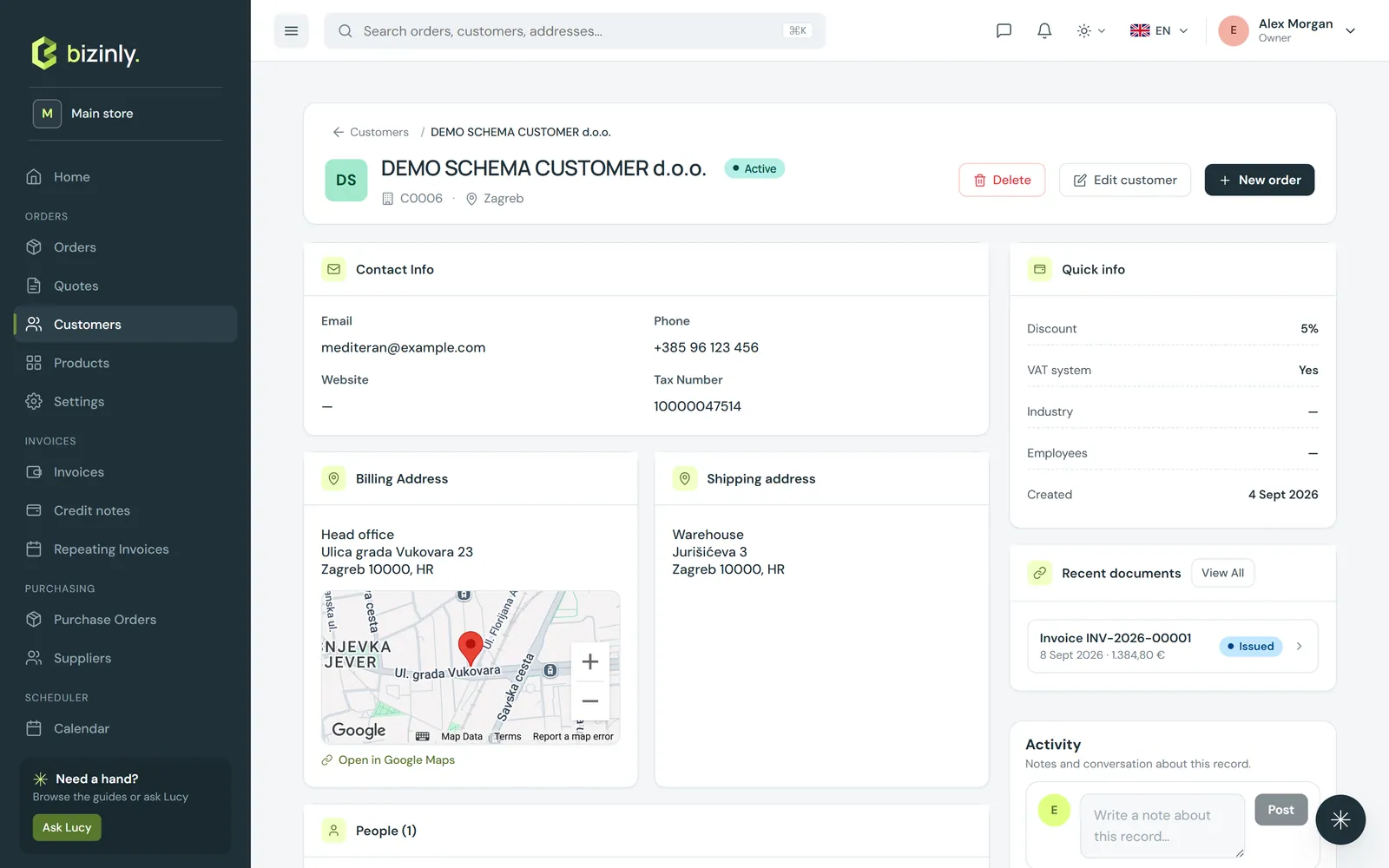
- Open it by clicking a customer's name anywhere — in a document list row, on a document's head, or from a document's Customer section.
- Inside the drawer: contacts with phone and e-mail, the billing address (with a map, when address lookup is configured), and Recent documents — click one to open a mini preview with its status, lines, totals and quick actions.
- Press View details for the full customer page, or New order to start a sales order for this customer straight away.
Contacts (the people at your customers)
Contacts are the people at your customers. A document can name one of them, so the right person gets the e-mail and appears on the printed page when needed.
- Per customer: Customers → the customer → Edit → People. Add a row with name, e-mail, phone and role; tick Primary for the main person.
- All contacts at once: from Customers, press People. Search by name, e-mail, phone or role, switch between active and inactive, and click a row to view and edit it in place — including moving the person to a different company.
- On a quote, order or invoice form, choose the person in the Contact field (filled in from the customer's people). The document's detail page shows the primary contact in its head.
- Note: the e-mail dialog pre-fills the company's own e-mail address, not the contact's — change the To field if you want it to go to a specific person.
Related: Add a customer, Related documents, Share and e-mail a document.