
USER GUIDE
Credit notes
Cancel or correct an issued invoice, in full or in part.
A credit note is created from an issued invoice with the Credit note button. It copies the invoice with negated quantities; once issued, it cancels the invoice if it covers the unpaid balance, or reduces it for a partial credit.
- Open the issued invoice (Issued, Sent, Partial or Paid) and press Credit note. A draft credit note opens, linked to the invoice on both documents' Related tabs.
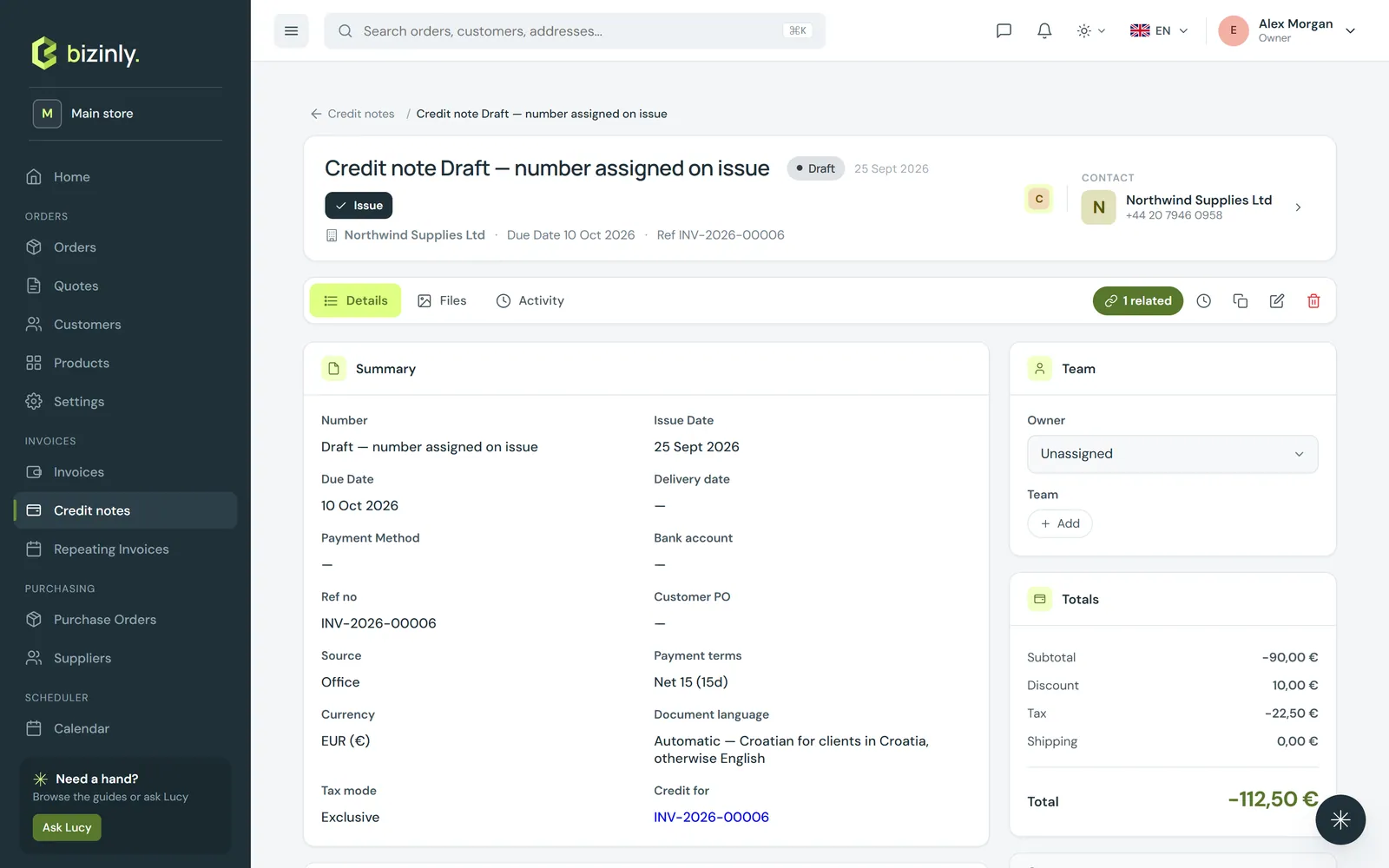 2. The draft has every line with a negative quantity (and negated shipping), so a full credit nets the invoice to zero. For a partial credit, edit it first — remove lines or reduce quantities, keeping them negative.
3. Press Issue. The credit note gets its number and is locked. If its total covers the invoice's remaining amount (total minus paid), the invoice becomes Cancelled; otherwise the invoice stays open with its status unchanged.
4. There is no "new credit note" button on its own — a credit note always starts from the invoice it corrects, and cannot be created from a draft or from an already-cancelled invoice.
5. If the customer already paid and you are refunding the money, also record a negative payment on the original invoice so its paid total reflects the refund.
6. To re-invoice correctly afterwards, Clone the original invoice, fix it, and issue the new one.
2. The draft has every line with a negative quantity (and negated shipping), so a full credit nets the invoice to zero. For a partial credit, edit it first — remove lines or reduce quantities, keeping them negative.
3. Press Issue. The credit note gets its number and is locked. If its total covers the invoice's remaining amount (total minus paid), the invoice becomes Cancelled; otherwise the invoice stays open with its status unchanged.
4. There is no "new credit note" button on its own — a credit note always starts from the invoice it corrects, and cannot be created from a draft or from an already-cancelled invoice.
5. If the customer already paid and you are refunding the money, also record a negative payment on the original invoice so its paid total reflects the refund.
6. To re-invoice correctly afterwards, Clone the original invoice, fix it, and issue the new one.
Related: Issue and lock invoices, Record and manage payments, Working with documents.