
USER GUIDE
Create a sales order
Confirm the work, then create its invoice whenever you're ready.
A sales order is created on Orders → New order (or by accepting a quote), gets its number at once, and moves through Draft → Confirmed → In progress → Fulfilled → Invoiced.
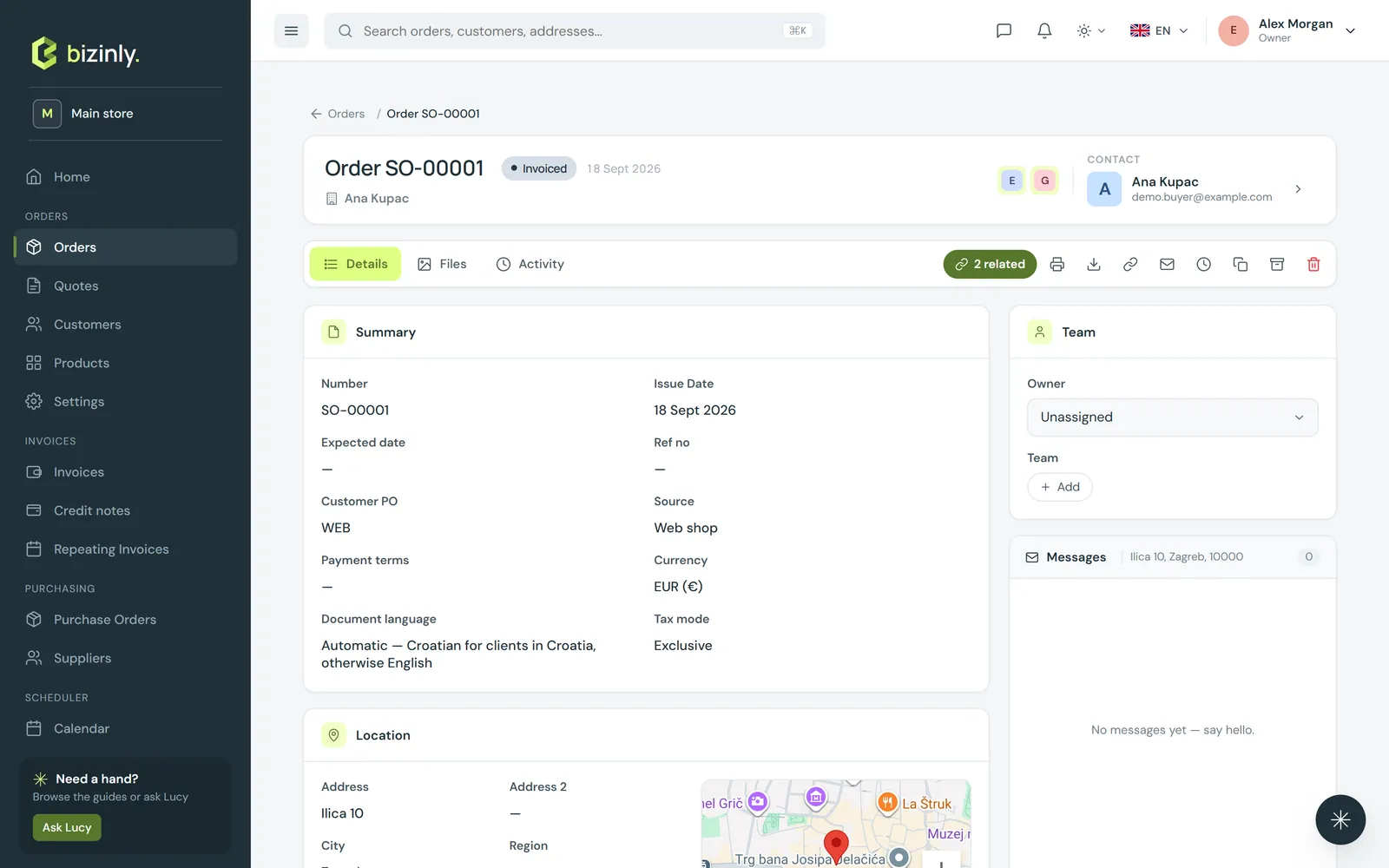
- Open Orders and press New order (or press New order from a customer's drawer).
- Pick the customer, addresses and contact, then fill in the details: issue date, expected date, reference, customer PO, service period, payment terms, currency and price mode.
- Add lines (product or free text), an optional shipping cost and document discount, and any notes. Press Save.
- On the order's page, press Confirm. Confirming turns every free-text line into a catalogue product and unlocks the next actions: Start progress, Mark fulfilled, Create invoice, Cancel.
- Press Create invoice at any point after confirmation — the order stays as it is until that invoice is issued, then it flips to Invoiced (closed).
- Orders have a Messages panel for internal team chat about the order, plus tabs for Files, Related documents and Activity.
Related: Create an invoice from an order, Working with documents, Collaboration: messages and files.