
USER GUIDE
Getting started with Bizinly
Set up your company, then create your first quote, order or invoice.
Bizinly keeps your customers and products, sends quotes, confirms orders, issues invoices, records payments and shares PDFs — all from one connected workspace. Set up your company first, then create your first document.
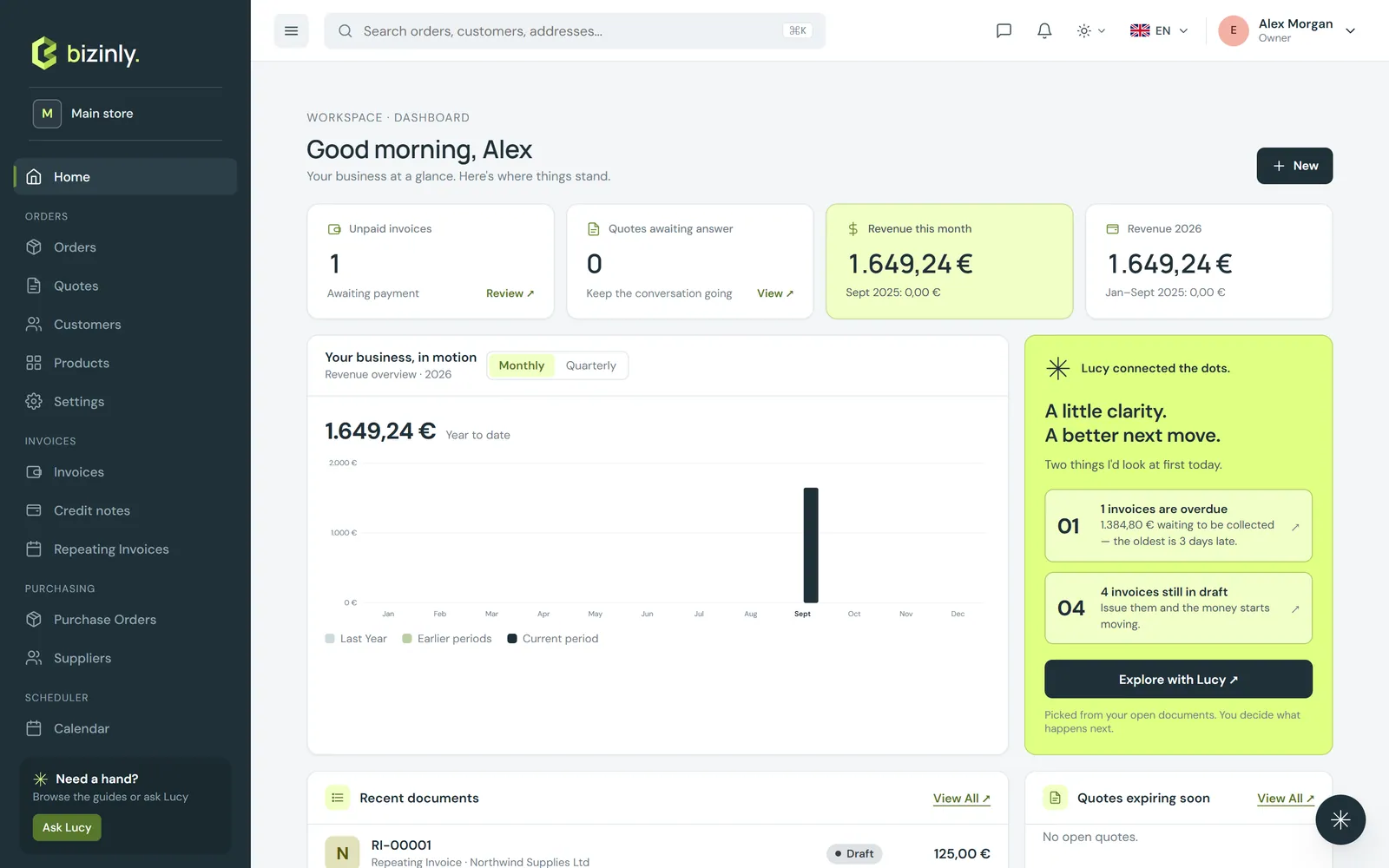
- Open Settings → Company and fill in your legal name, registration and tax numbers, address and contact details. Upload your logo and add at least one bank account — this is what appears on your invoices.
- Open Settings → Documents and check the numbering prefix for each document type (quote, order, invoice, proforma, credit note by default) and the footer texts printed on them.
- Check Settings → Tax types (VAT/tax rates), Payment terms (due dates) and Payment methods — sensible defaults are already there; adjust if needed.
- Add a few products (or skip this — you can type free-text lines on any document) and your first customers, or quick-add a customer straight from a document form.
- Create your first document: Quotes → New quote, Orders → New order or Invoices → New invoice.
- Press Ctrl + K (⌘K on a Mac) anywhere in the app to search documents, customers, contacts and products.
See How documents flow next for the normal path from quote to payment, or jump straight to Create a quote or Create an invoice. Stuck on a step, or want a document drafted for you? Meet Lucy, built into every screen.